Android
The same steps on Android, and what is different there.
Get the app on Google Play: https://play.google.com/store/apps/details?id=io.sophonz.st. Without Google Play, there is a signed APK: https://dl.sophonz.io/apps/android/latest/st-android.apk (always the newest version). Open it in the device's browser and, the first time, allow installing unknown apps.
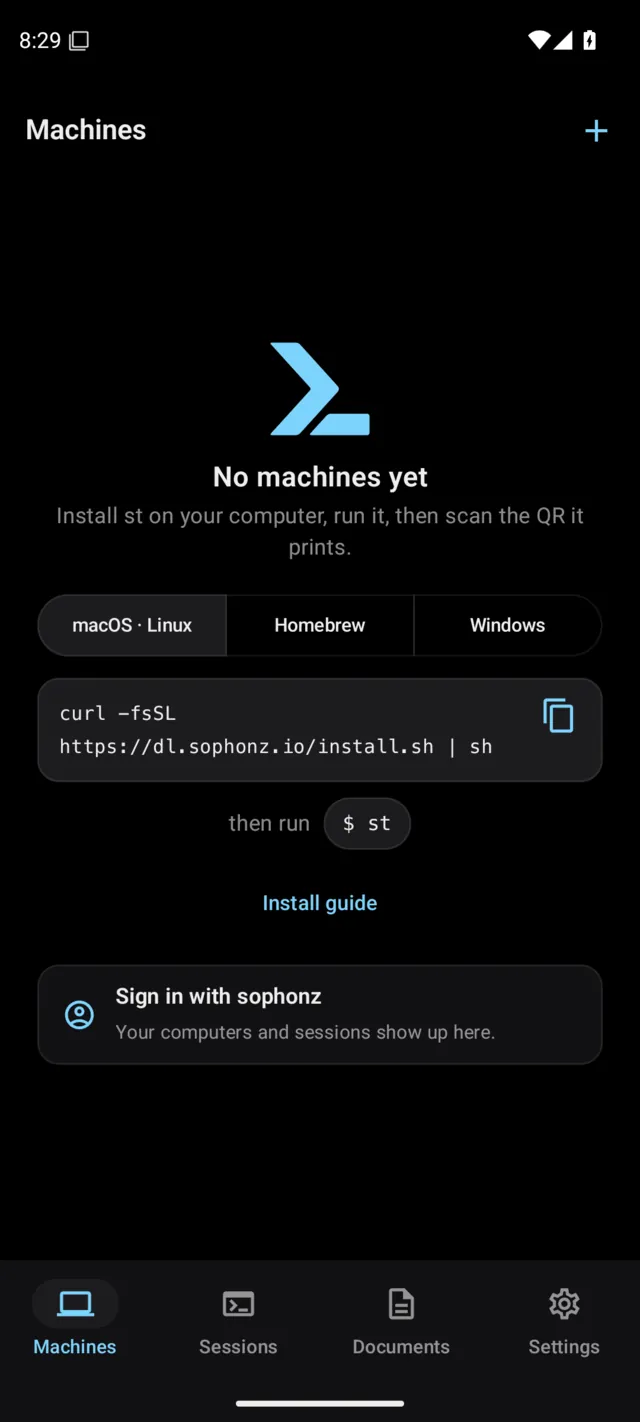
The app opens on an empty Machines tab, with the install command on it in three tabs so you can copy it from the device.
The first time it opens, the app walks you through its controls with a short guide, and again over the first terminal. First run in the app has the video and every step.
1. Start a session on your computer
The session lives on the computer, and it stays open there the whole time: the device joins it, it does not take it away. Install st first:
curl -fsSL https://dl.sophonz.io/install.sh | shbrew trust --tap sophonz-labs/tap
brew install sophonz-labs/tap/stirm https://dl.sophonz.io/install.ps1 | iexThen run it in the terminal you want to reach:
stIt prints a link and a QR code of the same link, and the session is shared from then on. Leave it running. You can go into it yourself with st ls and Enter and keep working there; the browser and the device that join later see the same shell. Install has the details for each platform.
2. Add the machine
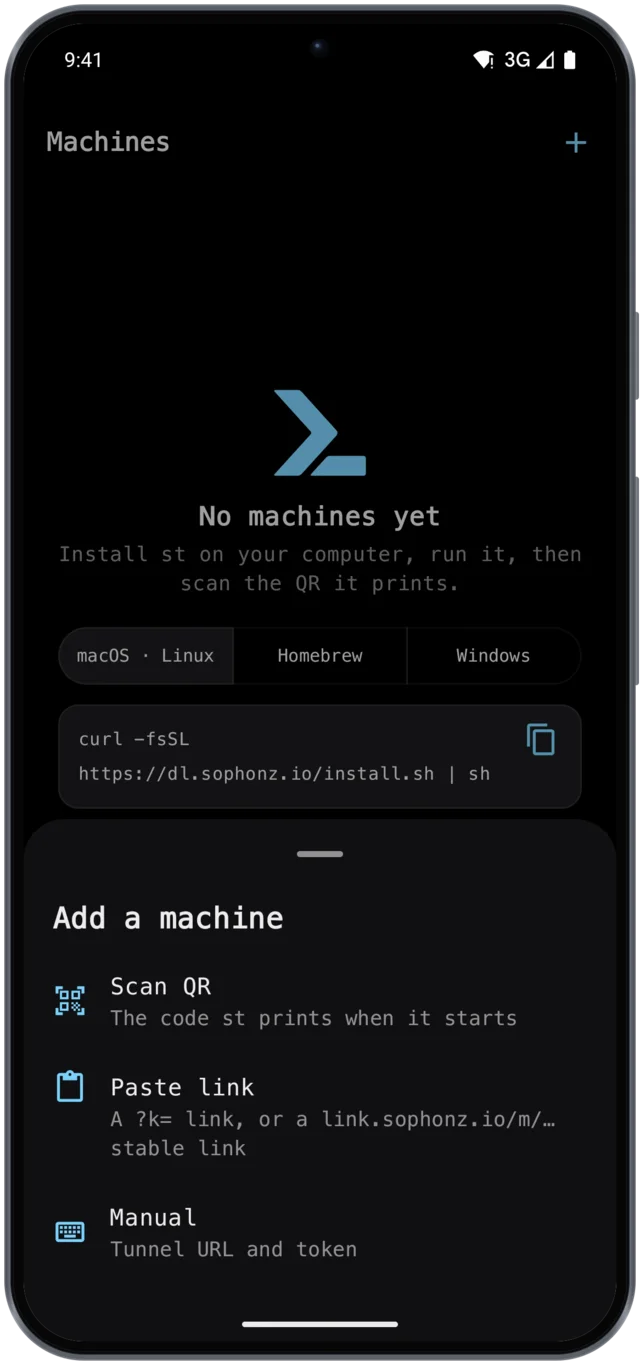
Tap + and choose how:
- Scan QR — the code
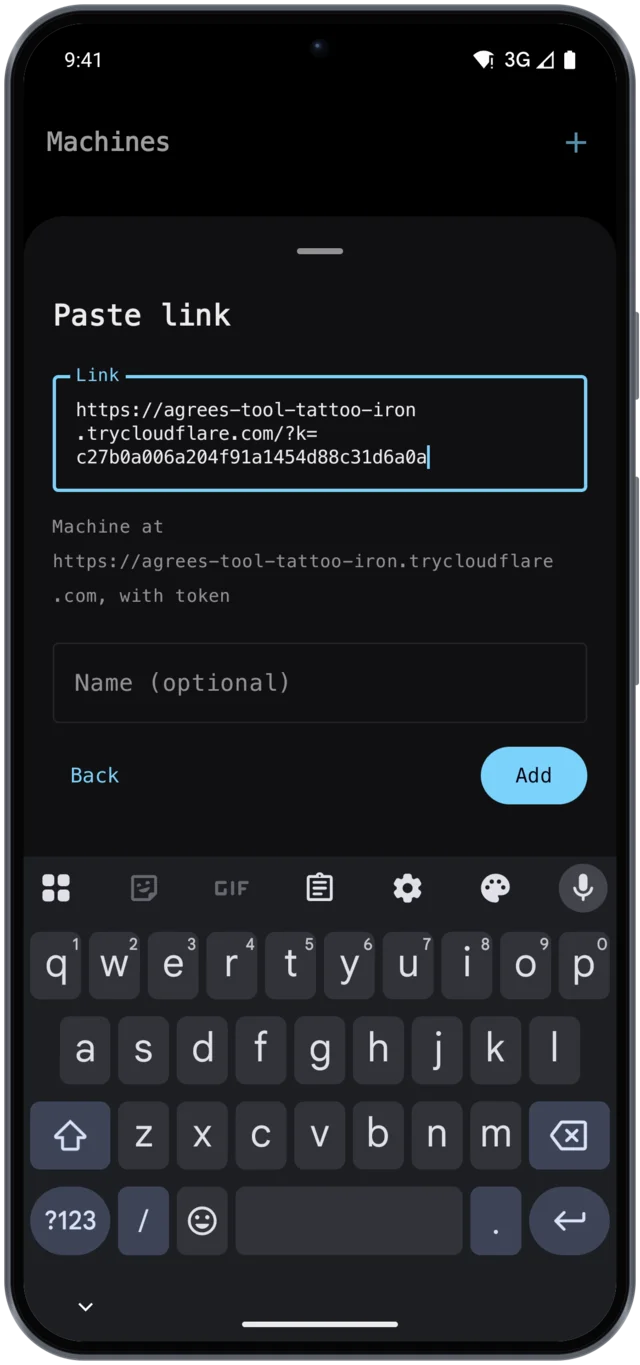
stprints when it starts. - Paste link — the link with
?k=in it, or a stablelink.sophonz.iolink from an account. - Manual — the tunnel address and the token, typed separately.
The sheet shows which machine the link points at before you add it. Give it a name if you like, and tap Add.
You can also share a link into the app. Long-press the link in a chat, a note or a browser, choose Share, and pick the app: it opens on the add sheet with the link already in it.
3. Pick a session
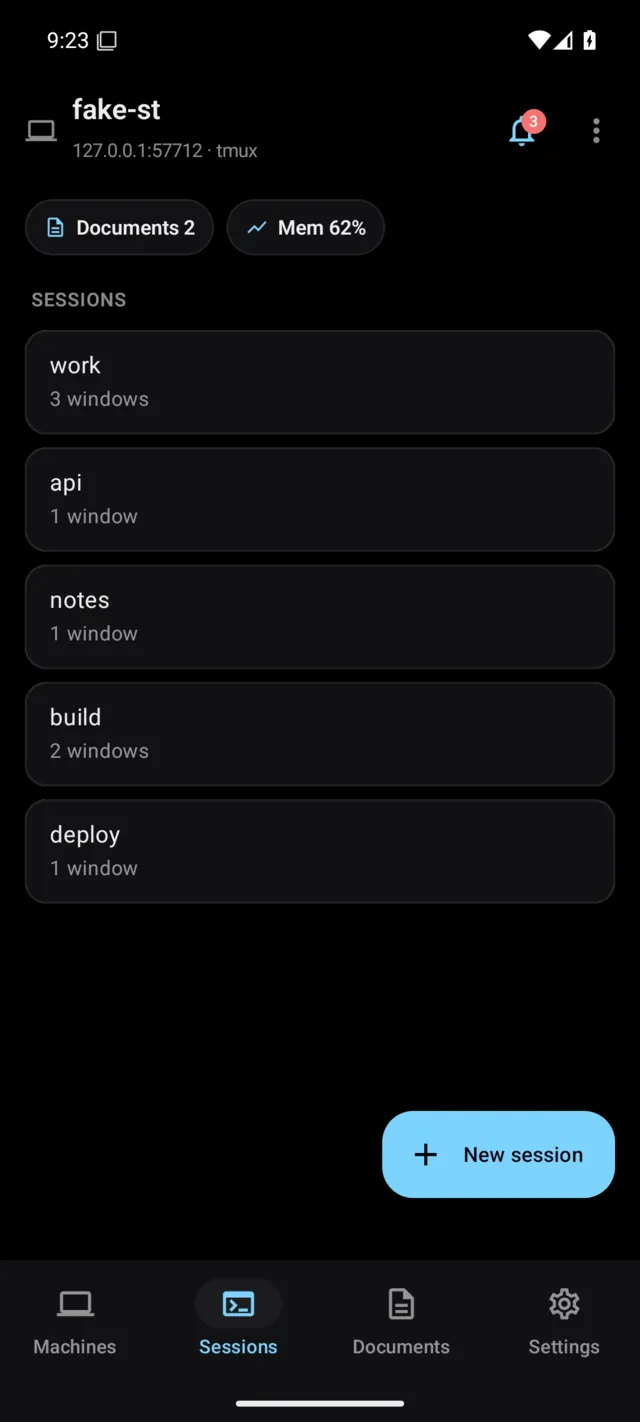
The Sessions tab lists every tmux session on the machine, with how many windows it has, what it is running and when it was last used. Tap one to open it, or New session to start another.
To close a session, swipe its row or long-press it and choose Close session; a window closes the same way from the window list. The app always asks first. With only a shell there it says the shell will exit; with a program or an agent still running it names them, agents first ("Claude Code is working in this window. npm is running too."), so a long job is not stopped by accident. A machine whose st is older than this cannot say what is running, and the question says so.
Tapping a session, on Machines or Sessions, opens its window list, even when it has one window: each window with the program running in it and its agents, the one you were last in marked. Tap a window for its terminal; back walks through that list, Sessions and Machines. To skip the list, long-press the session and choose Open terminal. Notifications, widgets and links still open the terminal directly.
4. The terminal
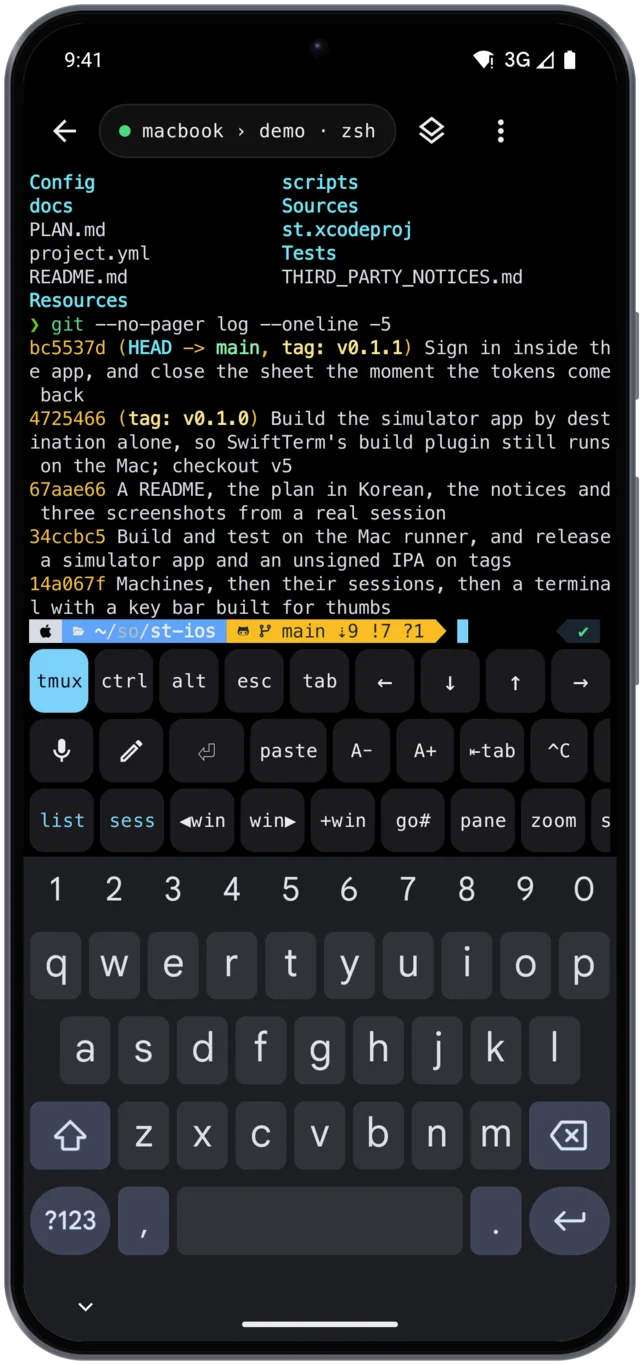
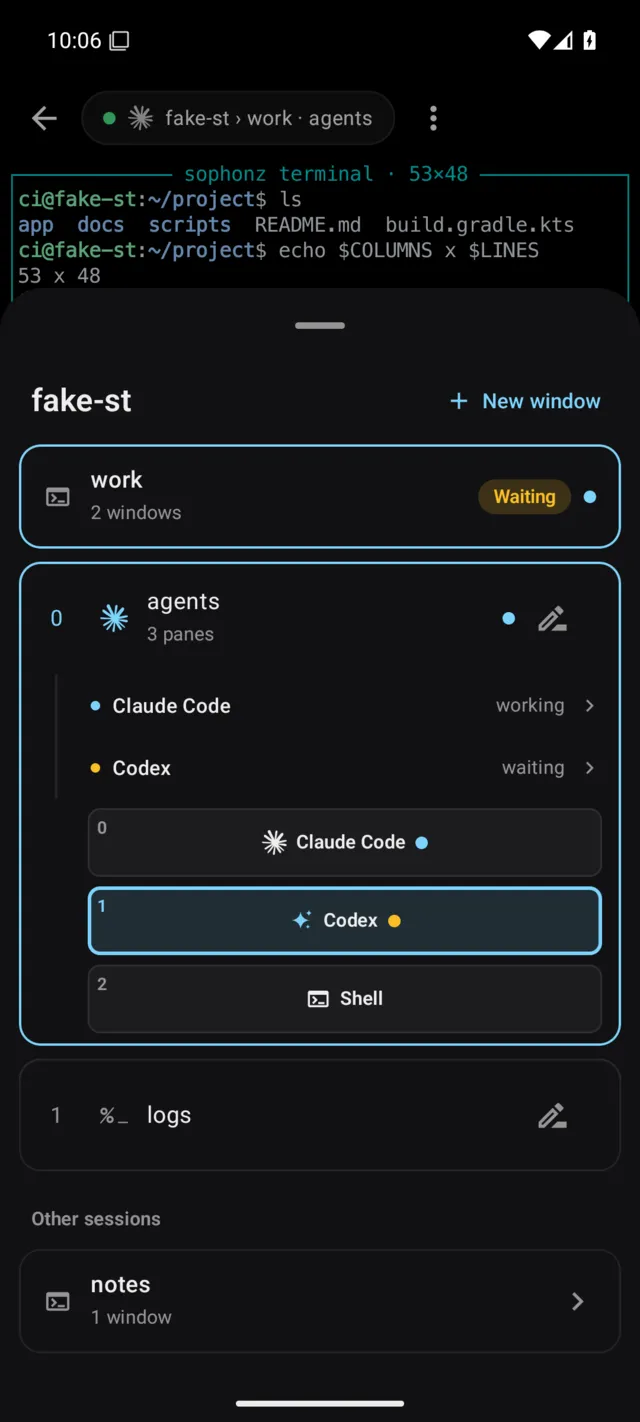
The pill at the top shows the machine, the session and the window. Tap it for a sheet to pick a session, window or pane; long-press it to rename the window on screen. ⋮ has the rest.
The key bar
| Row | Keys |
|---|---|
| First | tmux shows or hides the multiplexer row, agent the agent row. ctrl and alt apply to the next key; tap twice to keep them on. esc, tab and the arrows. |
| Second | Scrolls sideways: the keyboard, the mic, compose, ⏎, paste, A− and A+, ⇤tab, ^C, ^D, ^Z, ^R, ^L, symbols, hom / end / pgup / pgdn / del, and F1 to F4. |
| Agent | The keys of the agent in the current pane: Codex's ⇧← ⇧→ to answer its questions, ⇧tab for Claude Code's permission mode, esc esc, 1 2 3, ^J and more — see the agent keys. The first key, codex ▾, picks another agent. Shown while an agent runs. |
| Last | The multiplexer: list, sess, ◀win, win▶, +win, go#, pane, zoom, and, scrolling right, splits, detach and windows 1 to 5. |
The order differs from the iPhone: on Android the multiplexer row is the bottom one, nearest the thumb. When the screen is short, the agent and multiplexer rows give way first. Hold any key to see what it sends; the rows and keys are yours to change in Settings → Keys and input → Key bar → Layout or a keymap file — see the key bar. A pinch on the terminal changes the type size, like A− and A+.
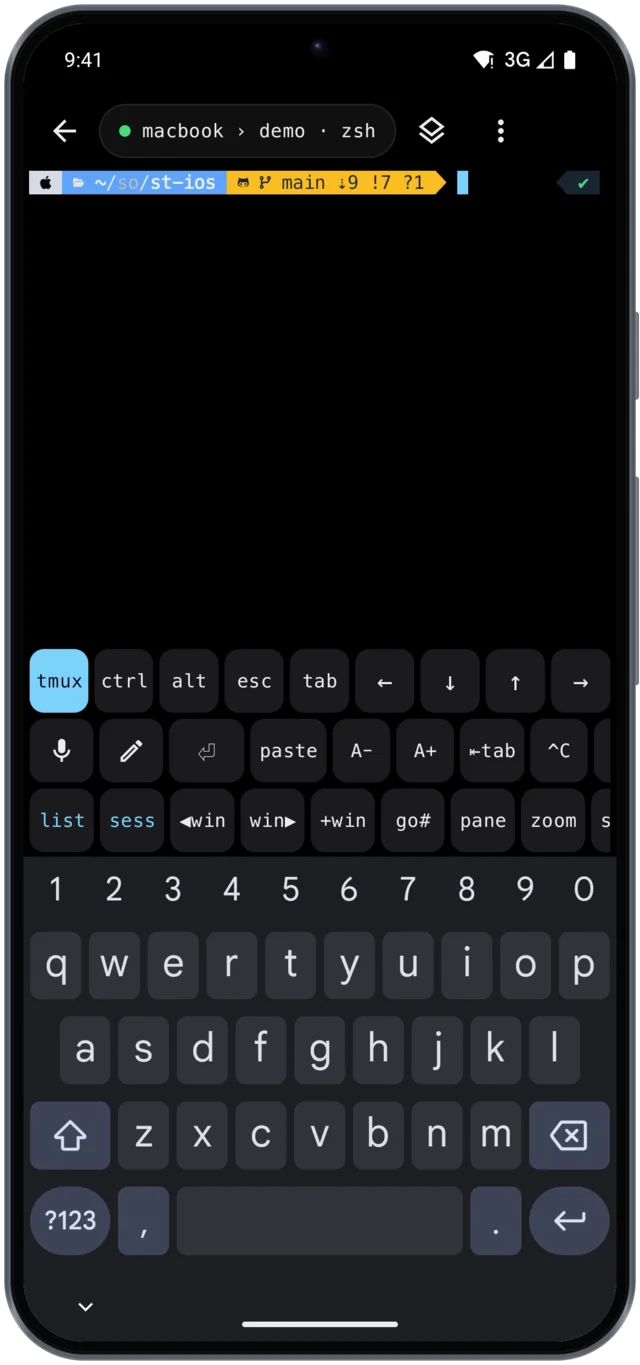
Closing the key bar. A swipe down puts away one thing at a time. On the terminal, the first swipe down puts the on-screen keyboard away and leaves the bar; swipe down again right away and the bar goes too (the first time, a hint says so). Any other drag down still scrolls back through the output. The keyboard key, and a drag down on the bar, do the same two steps: the on-screen keyboard first, then the bar itself. With the bar closed the terminal gets the whole screen, and a small keyboard button in its bottom-right corner brings the bar back with the keyboard; tapping the terminal does too.
With a hardware keyboard (Bluetooth, USB) the bar starts closed, since the keys are on the keyboard. The keyboard button opens it without the on-screen keyboard; the keyboard key on the bar, or Meta+Shift+B, closes it again. Whether the bar is open is remembered separately for with and without a hardware keyboard. To keep it open with one, turn off Settings → Keys and input → Key bar → Hide the key bar when a hardware keyboard is connected.
Voice
Dictation uses Android's own speech recognition, on the device when it has a model for the language. Tap the mic to start; the bubble shows what it heard. Tap the mic again, or Send, to finish. Choose the mode in the bubble:
- Chat — types what you said, then presses Enter.
- Command — only types it.
The first time, Android asks for the microphone.
Compose
The pencil key opens a text field for a longer prompt, where a Korean keyboard composes as it normally does. Send puts it in as one message, with Alt+Enter between lines and Enter at the end. The buttons under the text are icons, the same six as on iPhone:
| Button | What it does |
|---|---|
| Microphone (Dictate) | Speech to text at the cursor. Nothing is sent. |
| Page with an arrow (Load) | Brings in a document from the machine, one from the Documents tab or a file, at the cursor. |
| Paper clip (Attach) | A photo from the library or the camera, or a file. It goes to the machine at once and its path goes in at the cursor, so you write the prompt around it. Shown when the machine's st takes files (0.3.58 or later). |
| Speech bubble (Quick prompts) | Tap one to put it at the cursor; a long press sends it as it is. |
| Return arrow struck through (Type only) | Types it into the pane without the final Enter, so you can finish it there. |
| Paper plane (Send) | Types it as one message and presses Enter. |
Hold a button to see its name and what it does.
Files for the agent. Each file you attach shows as a chip above the text, with a thumbnail or its name, and its path (in ~/.sophonz/uploads on the machine, kept a week) goes into the draft. Photos go as JPEG at most 2048 px on the long side. Tap a chip for Paste into terminal now, which pastes the path into the pane right away for an agent that is already waiting, or Remove, which also takes the path out of the draft. Claude Code, Codex and Gemini CLI read a picture or a file from its path. While the pane waits on an approval or a question, st 0.3.71 or later refuses Paste into terminal now, because the agent would take the path as its answer, and the app says why; answer the prompt first, then paste.
Selecting and copying
Long-press a word in the terminal: it is selected, with a handle at each end and a menu floating over it: Copy, Select all, Save as .md and Share, plus Copy link and Open link when you pressed a link. Drag the handles to take more or less; hold one at the top or bottom edge and the scrollback moves under it.
Copy gives plain text: no trailing spaces, a long line that wrapped on screen in one piece, line breaks where the program put them. Korean and other wide characters, paths, flags and links come out whole. Select all takes everything the terminal holds; under tmux that is what the pane shows, so scroll there first. A tap anywhere, typing, or Back ends the selection. With tmux's mouse on, the long press and that tap stay in the app.
Windows
Tapping the pill opens a sheet titled with the machine's name. This session is at the top, and under it each of its windows in a card; a window split into panes shows its panes in the card too. Under Other sessions the machine's other sessions are folded: tap one to unfold its windows, and tap a window or pane there to move the terminal to it.
Tap a window to go there, swipe to close it, or long-press for Rename and Close window. The button at the row's end is the window's chat when it has one, Rename otherwise. Renaming and closing are on this session's windows only. Closing asks first and names anything still running; closing the last window ends the session and takes you back to the session list. Long-press a session's row to close it. New window at the top makes a window and asks for its name straight away; Skip keeps tmux's. With st 0.3.58 or later, New window also offers the coding agents installed on that machine (Claude Code, Codex, Gemini CLI): pick one, add a first prompt if you like, and st opens the window, starts the agent and types the prompt once it is up.
A window st set up again after tmux stopped carries a restored badge. Agents continue their conversations by themselves; an agent window whose resume line st could only type has a note that it is waiting for Enter. See multiplexers.
Subagents and teammates
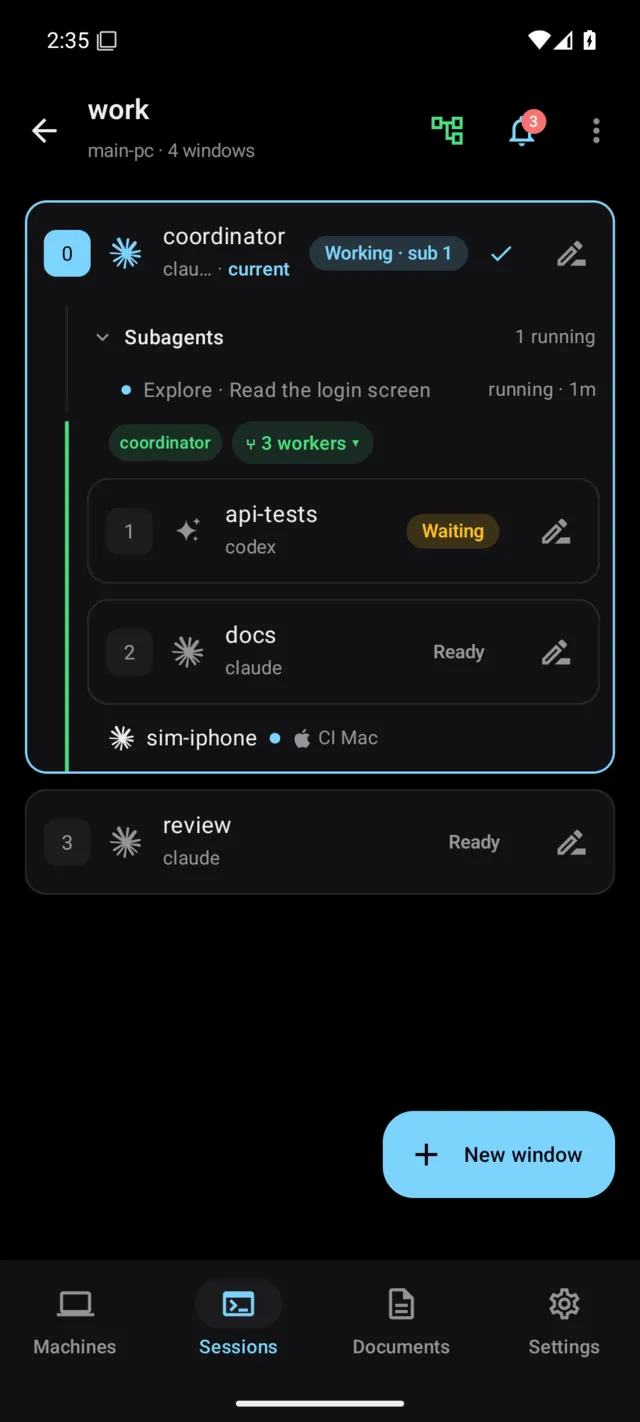
Under each window, in the window list and in the pill's sheet, the app lists what runs in it. A coding agent's subagents are listed one by one, with their type and the short description the agent gave them, and whether each is running, done or lost, and for how long. With several agents in a window, each gets a line with its subagents under it.
The subagents sit under a Subagents · 2 running, 5 done header. Tap it to open or close the list: it starts open while a subagent runs and closed when none does. Finished subagents go into a Completed (5) group at the bottom, closed until you tap it, newest first. A lead's teammates work the same way under Teammates, with teammates that finished or whose team ended in their own Completed group. What you open or close stays that way, for that window and agent, until the app is closed; a new subagent updates the count without opening a list you closed. TalkBack reads each header as a button with its counts and whether it is expanded.
A Claude Code agent team in tmux split panes is shown under its lead: each teammate with its state and how many subagents it has running. Tap a teammate (or an agent) to open its window with its pane zoomed. Teammates still running after their team ended are marked team ended, and so are their window and session; swipe to close them. This needs the hooks (st hooks install) and st 0.3.42 or later; an older st shows only how many subagents are running and done.
Coordinators and workers
When an agent hands work to others through orchestration, the app shows who works for whom, on this machine and on the account's other machines.
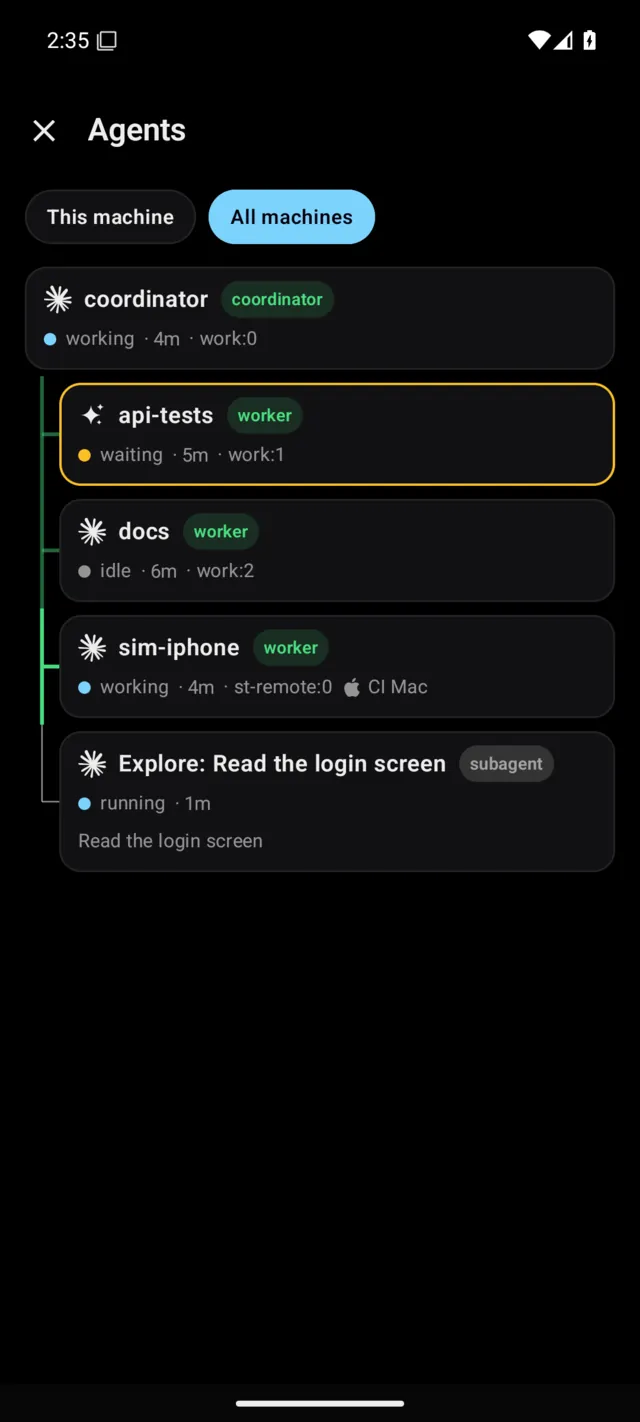
- The Agents chart. A tree of cards with the coordinator on top and each child on its line: a worker's line green and thick, a teammate's blue, a subagent's grey and thin. A line is bright while the child works. Each card has the agent's icon and name, a coordinator, worker, subagent or teammate badge, its state and for how long, the session and window, and the machine's name when it is another machine. Chips switch between This window (when opened from the terminal), This session, This machine and All machines (when signed in); workers on other machines join the same tree. Tap an agent's card to open its terminal on that window and pane (another machine is opened first); a subagent's or teammate's card opens its details. Open the chart from the ⑂ N chip on a machine's screen, Agents in the terminal's
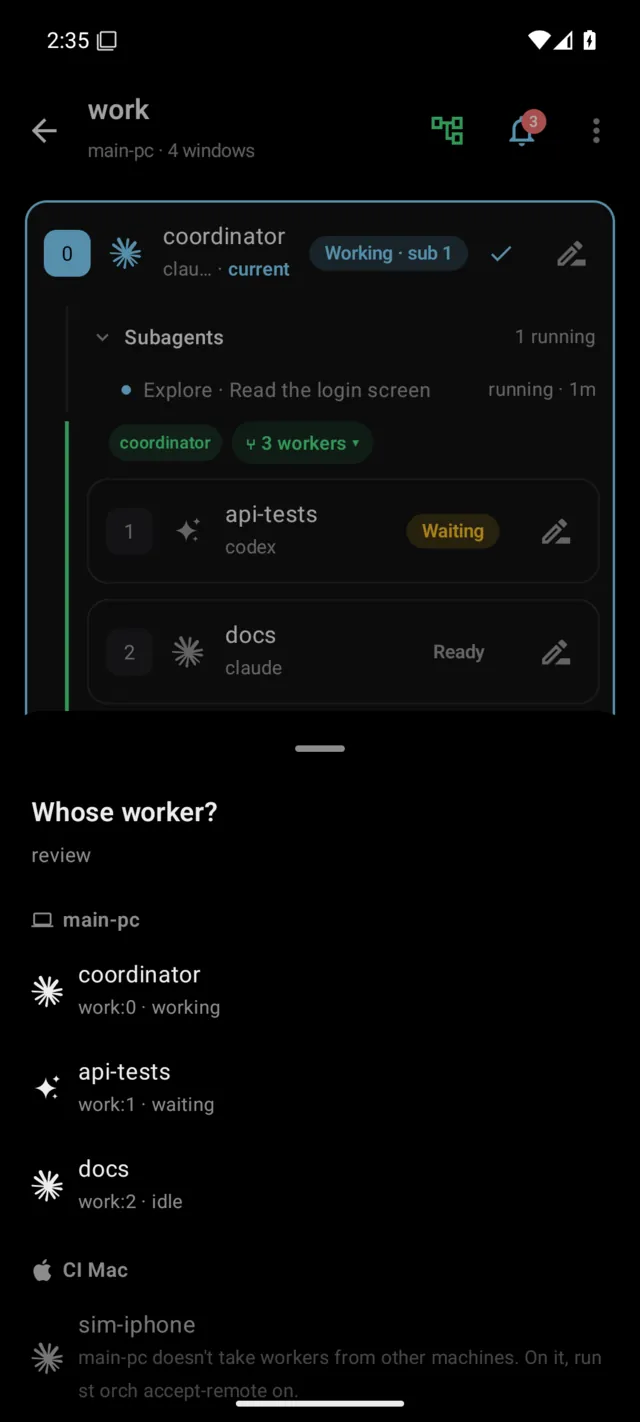
⋮menu, or the workers button at the top of a session's window list. - The window list. A coordinator's window carries a coordinator badge and a ⑂ N workers pill, open at first, that folds its workers. Its workers in the same session sit under it; workers in other sessions or on other machines are one line each, with their session or their machine's icon and name. A worker whose coordinator is on another machine stays in its own place and says
worker of <parent> · <machine>, such as "worker of coordinator · home-macbook". - The Agents card. When the window in front runs a coordinator or a worker, a ⑂ N pill sits at the terminal's top right. Tap it for the coordinator and its workers with their state, and tap a row to go there, wherever it is.
- Make a worker of… and Release. Long-press an agent's window or its card in the chart. Make a worker of… opens Whose worker?, the agents on your machines that can take it; one that cannot is greyed out with why. The agent keeps its conversation so far (adopting). Release on a worker makes it no one's worker. These stand in for the desktop app's drag and drop.
This is in the Android app 0.1.94 or later, with st 0.3.67 or later, which runs orchestration. Make a worker of… and Release need st 0.3.70 or later. To make an agent on another machine a worker, both machines need st 0.3.85 or later and the worker's machine has to take workers from others (st orch accept-remote on there); that machine's st and agent hooks sheet shows Workers from other machines: on or off. See Adopting across machines.
Panes
A window split into panes opens on a map of its layout first: each pane drawn where it sits, with its program's icon and name, its agent's state and an outline on the active one. The window's row says how many panes it has. Tap a pane to open the terminal there. On a phone that pane fills the screen (tmux zoom); on a tablet it opens with the rest of the window around it. Settings › Appearance › Terminal › Panes › Open panes zoomed changes that. Open whole window opens the window as it is.
In the terminal, to move to another pane, tap it under its split window in the pill's sheet, or open the same map from Panes in the menu. A zoom the app made goes back when you leave the terminal or go to another window, so the person at the computer does not find the window zoomed; a window that was already zoomed is left as it was, and so is a zoom you make yourself with the key bar's zoom. TalkBack reads each pane as "pane 2, Codex, waiting, top right". This needs st 0.3.56 or later and tmux; a window of one pane, an older st or zellij opens straight into the terminal.
Chat
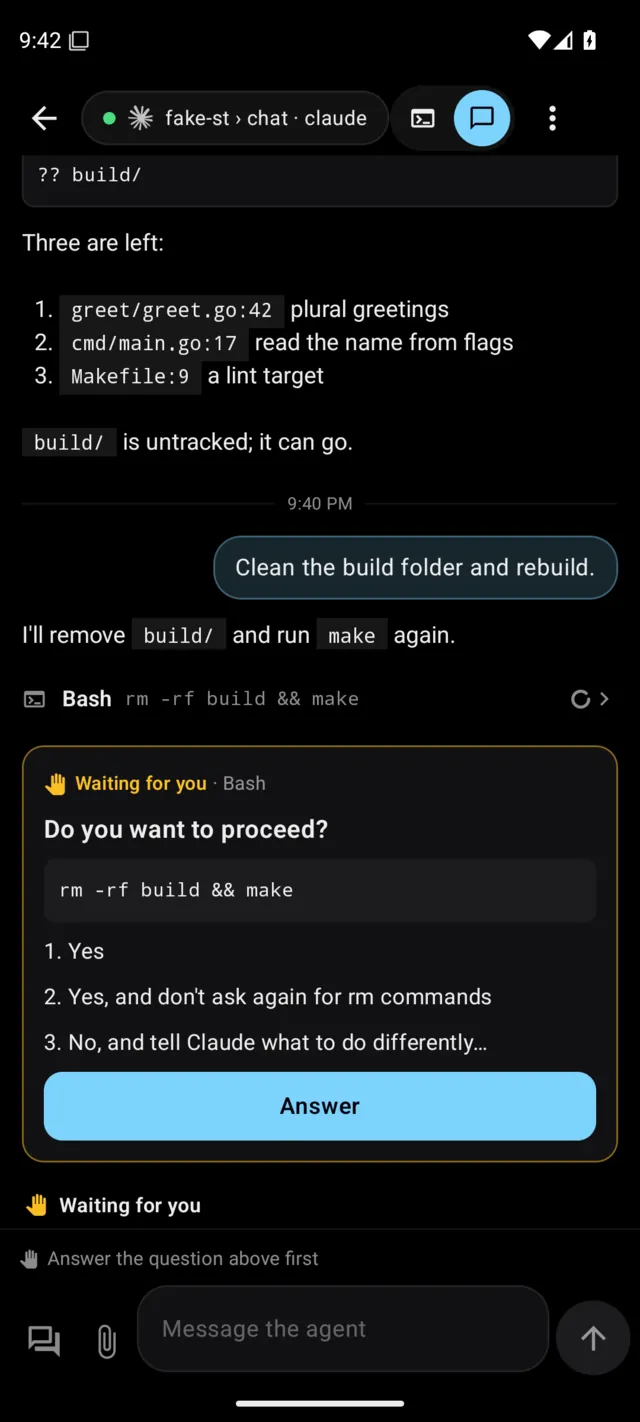
When a window runs Claude Code or Codex with st's hooks, the terminal's header has a Terminal | Chat switch. Chat shows the agent's conversation as messages instead of the screen: what you asked on the right, the agent's answers as formatted text, and each tool it used as one line with its name and what it worked on. Tap a line to see its input and output; an edit shows its change in red and green with line numbers. Thinking is folded into one line, a subagent shows its type and description (tap it for the window's subagents), and a long output has Show all. New messages arrive as the agent writes them; scroll up for earlier ones.
When the agent waits on a question, it shows as a card at the end with Answer, and the box at the bottom waits until it is answered. Type at the bottom to send to the agent: with st 0.3.63 or later, st types it into the agent's own input on your machine, and your message shows at once with Sending…, then Sent until the conversation has it. If it could not be confirmed it says Not confirmed · check the terminal (or Queued while the agent is busy) and is never sent twice. If something is already typed at the computer, the app asks Replace what's typed at the computer? and shows it first. While the agent works, a red Stop takes the send button's place and stops the turn, like Esc at the computer. The paper clip attaches photos or files: they go to the machine and their paths follow your words. With an older st the box sends as Compose does.
The terminal stays connected underneath, and the app remembers which view you used for each pane. The window list and the pill's sheet have Chat on a window too (its chat button; with it there, Rename is in the row's long press), a split window's pane map has a chat button on each agent's pane, and an agent's notification has Open in chat. Chat reads the transcript the agent writes on your machine and comes straight from it, like the terminal; it needs st 0.3.57 or later. Through a trycloudflare.com address, agent state and the chat arrive as they happen with st 0.3.67 or later; an older st has them read again every few seconds.
Copying part of it. Press and hold the chat's text and drag to pick just the part you want, then Copy.
Files and changes
A file path a program printed in the terminal, such as src/auth.go:42:7 or ./README.md, is a link. Tap it and the file opens as a preview at that line: code with line numbers and simple colours, Markdown rendered, pictures fitted. Its menu has Copy path, Insert into Compose and Share. A file a chat tool call read or changed opens the same way. Files that may hold secrets (.env, keys) stay on the computer.
Changes in the terminal's ⋮ menu lists the pane's git changes, unstaged and staged, and opens each file's diff with line numbers. Press and hold a line to leave a note for the agent; Add notes to Compose puts them in the draft as path:line — note, ready to send. Nothing is staged or committed.
Quick prompts are kept on the machine, so every phone that opens a terminal there has the same list. All of this needs st 0.3.62 or later.
GitHub Actions
Actions in the terminal's ⋮ menu shows the GitHub Actions runs of the repository the pane on screen is in. The list opens on This branch, with All beside it: each run with its status, its title, the workflow and run number, the branch and how long ago it changed. ↻ at the top reads it again. While a run is queued or in progress the list checks again every 10 seconds.
Tap a run for its jobs and their steps, each with how long it took, and Open on GitHub. A failed run has Failed log, the last 400 lines of its failed steps, and Rerun failed jobs; a finished one has Rerun; one still going has Cancel run, which asks first. A read-only link can only watch.
st reads all of this with the machine's own GitHub CLI and its sign-in; it never holds a GitHub token itself. So the machine needs gh installed and signed in, and when something is missing the sheet says which: gh is not installed on this machine, gh is not signed in (run gh auth login on the machine), Not a GitHub repository, or Not a git checkout when the pane's folder is not in one. This needs st 0.3.74 or later and tmux (psmux on Windows).
5. Next time
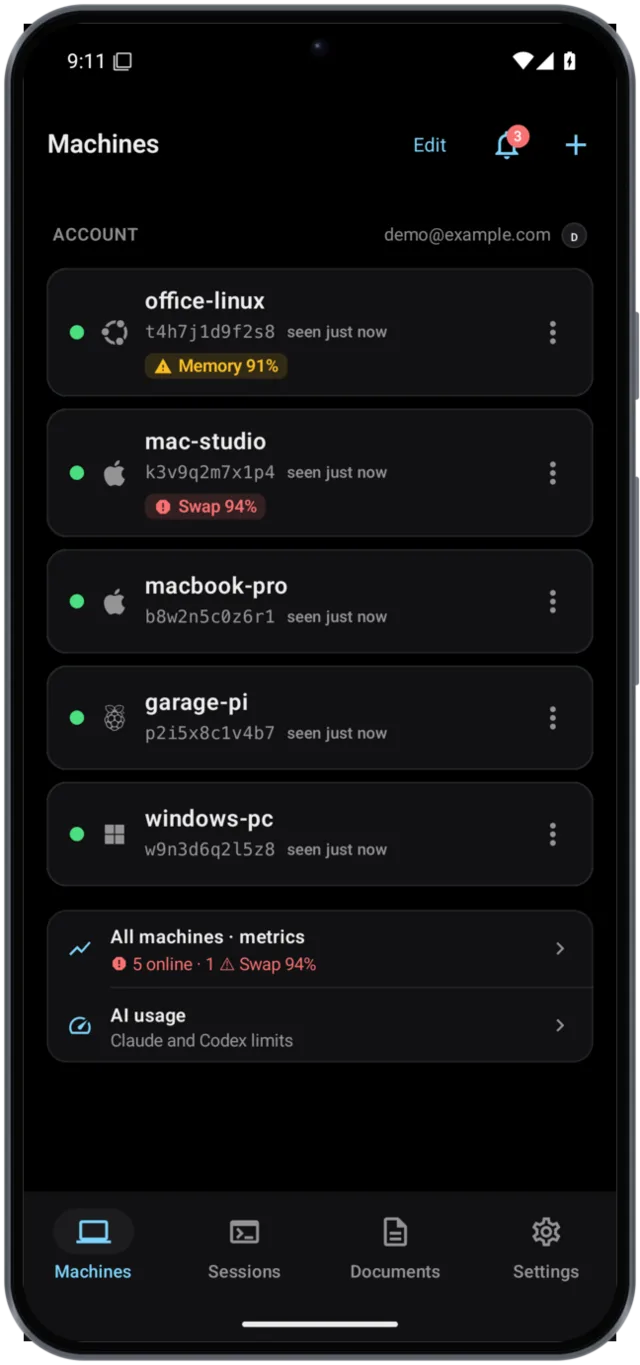
The machine is saved under Saved on the Machines tab, with when it was last seen. One tap opens its sessions.
Offline machines
A machine the device cannot reach is dimmed on the Machines tab, with its state and when it was last seen.
| Status | What to do |
|---|---|
| Offline | Check that the computer is on and connected; st comes back on its own. A computer that is asleep shows as Offline too. |
| Stopped | Run st on the computer, or st service install so it starts with the computer. |
| Updating… | Nothing; it is usually back within a minute. |
| Signed out | Run st login on the computer. |
| Online · tunnel unavailable | Nothing; st keeps trying. |
| Restoring terminal… | Nothing; st is setting tmux up again (multiplexers). |
Tap the machine and the app says the same, with the command to copy, instead of trying to connect. Its sessions stay listed with their agents' last known state. A terminal that is open when its machine goes away stops reconnecting and says which of these it is; it connects again when the machine is back.
Every state but Offline comes from your account, so it needs you signed in and st v0.3.32 or later on the machine. The same states are on the dashboard.
When a machine's st starts again at a new address or with a new token, the app follows the account's new address for that machine. If an open terminal's token is refused, the app goes back to the machine screen and asks you to open the session again, instead of asking for the QR code.
Check connection (a machine's ⋮, on its row or at the top of its sessions, or the terminal's ⋮) goes through sophonz, the machine's heartbeat, the tunnel's address, st, a live connection and latency in turn, and says where it stops answering and what to do. Copy results copies the report without addresses or keys. It needs st 0.3.62 or later.
On a bigger screen
Plug in a USB-C or HDMI display adapter, or cast to a TV with Smart View or Screen Cast (Miracast), and the terminal you had open fills that screen. It is not a copy of the device's screen: the terminal is drawn again at that screen's resolution.
The device stays as the thing you type on: key bar, keyboard, Compose and gestures are all still there. A strip at the top says where the terminal is and its size there, and under it you choose what the device shows:
- Small preview: the same terminal, scaled down to fit the device.
- Keyboard only: nothing but a hint; drag the empty area to scroll, two fingers to switch windows.
The button on the strip switches between them, and so does the terminal's menu.
Pinch or A−/A+ sizes the text on the big screen while it is there.
One thing about size: while it is connected, the window is the display's size. The keyboard coming up changes nothing there. Unplugging it, leaving the app, or closing the terminal puts the terminal back on the device at the device's size.
Settings → Appearance → External display turns it off, picks what the device shows, and sets the font size there (17 by default).
With a Bluetooth keyboard you can put the device down altogether: keys go straight to the terminal, and only the app's own shortcuts are taken by a keymap. The Alt+` switcher for moving between sessions is drawn on the big screen.
Chromecast and Google TV screen casting copy the device's screen instead of adding a display, so the terminal stays at this device's size there. With Samsung DeX on, the app itself runs on the monitor.
Notifications and the Live Activity
Install the agent hooks on your computer and the device knows what an agent is doing — working, waiting for permission, or done.
There is one Live Update for the account, not one per machine: a single ongoing notification with a row per machine. It starts when the account gets busy, its clock runs from the longest-working turn, it reads "All done" while nothing works or waits, and after ten quiet minutes it goes — the same content the iPhone's Live Activity shows, under the same rules. Only machines that are online count.
What it carries is names, states, counts and times. Not what is in the terminal.
| Setting | What it does |
|---|---|
| Notifications | agent notifications at all |
| Quiet hours | nothing sent during the hours you set |
| Per-machine | silence one machine |
| Notify when an agent starts working | off by default: a quiet notification, without sound, when an agent starts working. One per session, replaced by the next start, and gone once the turn finishes or you open the session |
| Notify when a machine goes offline | a notification when a machine on your account goes offline without saying why and stays so for two minutes; it goes away when the machine is back. Once each time: a computer that wakes for a moment and sleeps again does not notify again until it has been back for five minutes |
| Live Update | that one-line state in the shade |
| Only decision gates | only the decisions an agent asks for with st gate notify this device; a machine losing or regaining its connection still does. Shown when your account offers it |
A prompt that is waiting puts its options on the notification as buttons, and they need the device unlocked. Tapping a notification opens that session.
When Claude Code asks several questions at once (AskUserQuestion), the sheet goes through them one step at a time, with boxes where a question takes several answers, and Send answers sends them all; st types them in for you. A notification has answer buttons only for a single question with a single answer.
When an agent hands its turn to subagents, the session reads Subagents working (3) rather than done, and a quiet notification says so, with an Open button.
Notification settings. Settings → Notifications → Agent notifications is one row with on or off and the unread count. It opens a screen in groups: the history; notifications, offline and the Live Update; Only decision gates; finished and started turns; quiet hours; and the per-machine switches.
Notification history
The bell at the top of every screen except the terminal (also Settings → Notifications → Agent notifications → Notification history) lists what the device was told, newest first, with how many are unread. Tap one to open it; swipe right to mark it read, left to delete it, or use Mark all as read. A read notification leaves the Unread list, the notification shade and the launcher badge — on every device signed in to the account. Answering a question at the computer, or a machine coming back online, marks its notification read on its own.
The ongoing card that counts working agents stays while they work; only the notifications you have read go.
Machine health and AI usage
At the bottom of Machines are two small rows. All machines · metrics says how many are online and, when one is in trouble, its worst reading ("3 online · 1 ⚠ Swap 94%", in amber or red); it opens the overview: every machine on your account with its memory, swap and CPU over the last ten minutes, the most strained first. Offline machines don't count. AI usage shows each Claude and Codex account's 5-hour and weekly use ("Claude · 5h 42% · week 61%") and opens the AI usage screen; see AI usage and past sessions.
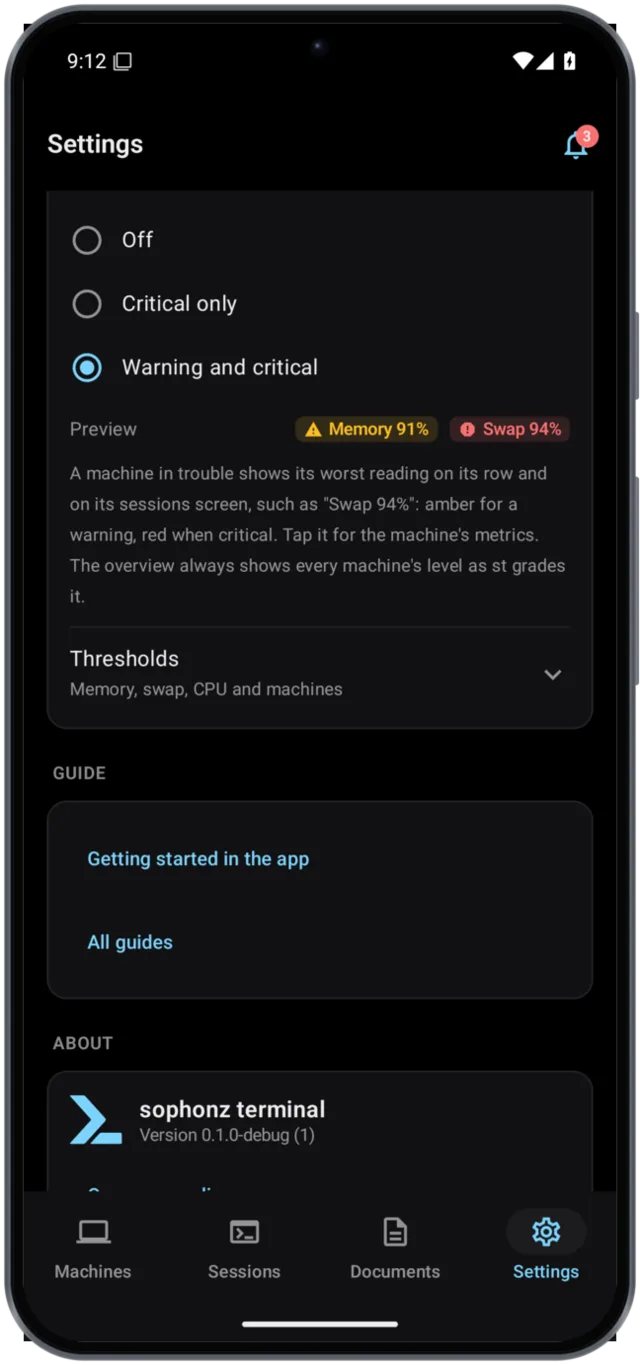
When a machine is in trouble, it says so where the machine is: under its name in the machine list, and on its sessions screen, a short line shows the worst reading, such as Swap 94% or Memory 91%, after an amber triangle (warning) or a red octagon (critical). A machine that is fine shows nothing. Tap the line for that machine's metrics.
Settings → Notifications → Machine health indicator decides what shows:
- Show: Off, Critical only, or Warning and critical (the default).
- Thresholds: the bars for memory used (90% / 96%), swap used (75% / 92%) and, if you turn it on, CPU. The defaults are the ones st itself uses; Reset to defaults brings them back. A machine whose st is too old to send the numbers keeps st's grade.
- Machines: switch a machine off to hide its health, for example a Mac that always runs deep in swap. You can also do this from that machine's Metrics screen, or by pressing and holding its card in the overview.
The charts on a machine's metrics and in the overview draw your bars as dashed lines, amber for warning and red for critical, and Thresholds there opens the same editor, with that machine's switch first.
These settings only change what is shown on the rows. The overview always shows every machine's level as st grades it.
Documents and sharing into a pane
A machine's screen. It opens on the machine's sessions, each in a card of its own. Over them is one row of chips that scrolls sideways when it does not fit: first Update st when the machine's st has a newer version; Documents, with how many documents the machine has and how many came since you last opened them; Metrics, with one reading such as "Mem 62%", in amber or red with a warning sign when the machine is in trouble; AI usage, with the fullest limit of the accounts its agents use, such as "Claude 61% week"; ⑂ N while agents there hand work to others, which opens the Agents chart; History, which opens its past agent sessions; and only when the hooks need a look, ⚠ Hooks. Each opens its screen or sheet. In a session's window list each window is a card too, and what runs in it (agents, subagents, teammates) hangs from a thin line under the window's number. When the machine is offline the row says Offline, and Documents opens what you saved from it on this phone.
A machine's documents. On a machine whose st keeps documents (0.3.43 and later),
the Documents chip at the top of its screen opens what an agent handed over with
st doc, newest first. Open one to read it rendered
or raw. Copy all copies the markdown; Share sends a real .md file;
Save on this device keeps it in the Documents tab (it asks which folder,
the machine's own first); Export to Download/sophonz puts a copy in the
device's Download folder; Send to Compose puts it in a pane's Compose. The
list's ⋮ has Save all to this device. A new document's notification
opens it.
Editing. Edit, then one of two saves:
- Save to computer writes your edit to the machine's copy (st 0.3.46 and
later). It changes the copy st keeps in
~/.sophonz/docs, never the file the agent handed over. If the copy changed while you were editing (in the web terminal, or from another device), you choose: Overwrite, Keep both (yours becomes a new document, "Plan (edited)" for a document called Plan), or Cancel and keep editing. While the machine is offline the button is off and says why. - Save on this device keeps it in the Documents tab, whether or not the machine is there.
The Documents tab. Only what is saved on this device, and it reads with no
machine online. Folders inside folders of plain .md files in the app's own
storage; Export to Download/sophonz puts a copy where other apps (Obsidian
too) can open it. Search titles and text, sort by last changed, name or date
written, and make, rename, move or delete documents and folders (touch and hold
a row). A file saved from a machine still has Save to computer, and when the
machine has changed it since, it says work-mac has a newer version (with your machine's name) with
Update and Keep this one. Where each file came from is kept beside the
files, not written into them. Copies you edited with an earlier version are
already there.
The first time you open the Documents tab or a machine's Documents, a short guide walks through them; the ? on these screens opens it again. See Documents.
Sharing into a pane. Share text, a link or a .txt/.md file to sophonz
from any app, then pick the machine, session, window and pane (the ones you
used last come first). The terminal opens on that pane with the text in
Compose, not sent. A machine's own link still opens Add. Each pane keeps its own draft until you send it. Pictures and PDFs can be shared the same way: they go to that machine and their paths into the draft (st 0.3.58 or later).
In Compose, Load brings in a document from the machine, one from the
Documents tab or a .md/.txt file at the cursor. Copying a selection in the
terminal offers Save as .md (the selection menu has it too), which puts it in the
Documents tab and in Download/sophonz.
Widget
Touch and hold an empty spot on the Home screen, tap Widgets, and drag sophonz → Agents where you want it. It starts at 2×2; touch and hold it and drag the edges to make it bigger.
| Size | What it shows |
|---|---|
| Small (2×2) | How many agents are waiting and working, and the one that needs you most, such as api · waiting for you, with its machine |
| Medium (4×2) | A line per machine with its most urgent session, or Offline · 3m ago, and a warning when its memory runs low |
| Large (4×4) | Sessions grouped by machine, with their state, subagents and how long ago it changed |
When you add it, pick its look: Match app (the default — black, like the app, unless you changed the app's theme), Dark, Light, or System, which follows the device's light or dark mode in your wallpaper's colors. On Android 12 and later, touch and hold the widget and tap the pencil to change it later.
Tap the widget and the app opens what it shows, as a notification would: the decision for an agent that is waiting, or the session. Medium and large open the line you tap.
The widget needs the account and shows names and states only, like the Live Update. It never connects to your machines. Each agent notification and the Live Update's own updates change it, and so does the app whenever it loads the machine list; with no news it checks the list every 30 minutes. Every size says how old it is, Updated 3m ago, and dims once that is more than fifteen minutes. Turning notifications off leaves it to the app and the 30-minute check. The words follow the device's language.
Terminals
A second widget jumps straight into a session. Drag sophonz → Terminals onto the Home screen the same way and resize it like the Agents widget.
It lists your open sessions, the one you used last first: the last one you opened on this phone, or the one whose agent last changed. Each line has the session's name, its machine, how many windows it has and how many devices are viewing it, and a colored dot when an agent runs there (the same colors as the Agents widget). Small shows just the session you used last, big; medium up to four; large groups them by machine. A machine that is offline is dimmed and keeps the sessions it last had.
Tap a session and its terminal opens. Its look is picked as for the Agents widget. The list comes from the app and the 30-minute check; agent dots change with the agent notifications, as the Agents widget does.
Updating st on a machine
When a machine's st has a newer version, its row and its screen say Update
available. The Update st chip on the machine's screen opens "st and agent hooks"; Update st there asks first, then has the
machine's own st upgrade itself — the same download, check and handover as
st upgrade — while the app shows each step. The link stays the same and
sessions keep running; if the new version does not come up, the current one
comes back and the app says why. When the machine's st cannot update itself — installed with Homebrew, pinned to a version with ST_VERSION, or a development build — the sheet says Can't update from here and what to run on the machine instead (brew upgrade st, then st restart, for Homebrew).
When an agent's hooks are out of date or only partly installed, the machine's
screen shows a ⚠ Hooks chip that opens the same sheet with Install, and a terminal where that agent runs shows a
bar with Install. Nothing is typed into the terminal; restart the agent (or
open /hooks in Claude Code) afterwards. See Agent hooks.
Your account
Signing in syncs the machines registered to your account. Settings → Account → Sign in with sophonz opens the app's sign-in screen. Type your email and password and tap Sign in; autofill fills them, and the device offers to save the password afterwards. Create account and Forgot password? open the sophonz pages in a browser tab over the app, and the app comes back by itself when you are done. Buttons for other sign-in providers (GitHub, Google) appear when they are switched on. After that the Machines tab lists the machines on your account under your email; tap one and its sessions open, with no link to paste. Links and QR codes keep working either way. To give an account machine a name other than its hostname, see Naming a machine.
An account on the PRO plan has a PRO mark on its avatar in Settings. The Free plan uses the first three machines added; a machine over that says Paused — plan limit in its row.
Under each online account machine its sessions are listed too, inside the machine's card and a step in, each with a terminal icon. An eye and a number at the end of a session's line are the devices viewing it right now: this phone, a browser, the computer's own terminal. The chevron on the machine's row folds the sessions away, and the phone remembers that for each machine. A folded machine still shows, under its name, what its most urgent agent is doing and how many sessions it has. Tapping the row opens the machine either way.
Sharing a machine or session link
A machine's menu (⋮ on its row, or at the top of its sessions), a session's (a long press on its row, or ⋮ over its windows) and the terminal's ⋮ have Copy link, Share… and Open in browser. All three use the same link:
- A machine on your account:
https://link.sophonz.io/m/<slug>(the slugstgot from your account), and/s/<session>after it for a session. It is not a key: it opens only for you, signed in, and anyone else you send it to is asked to sign in and sees nothing. - A machine added from a link and not on an account: its tunnel address, without the
?k=token, which asks for the token. If thatstruns without a token, the address alone opens the terminal, and the first time you share such a link the app says Anyone with this link can use this terminal first.
Share… opens Android's share sheet (Quick Share, messengers, mail). Open in browser hands the link to your browser, where the web terminal stays open in its own tab.
Settings
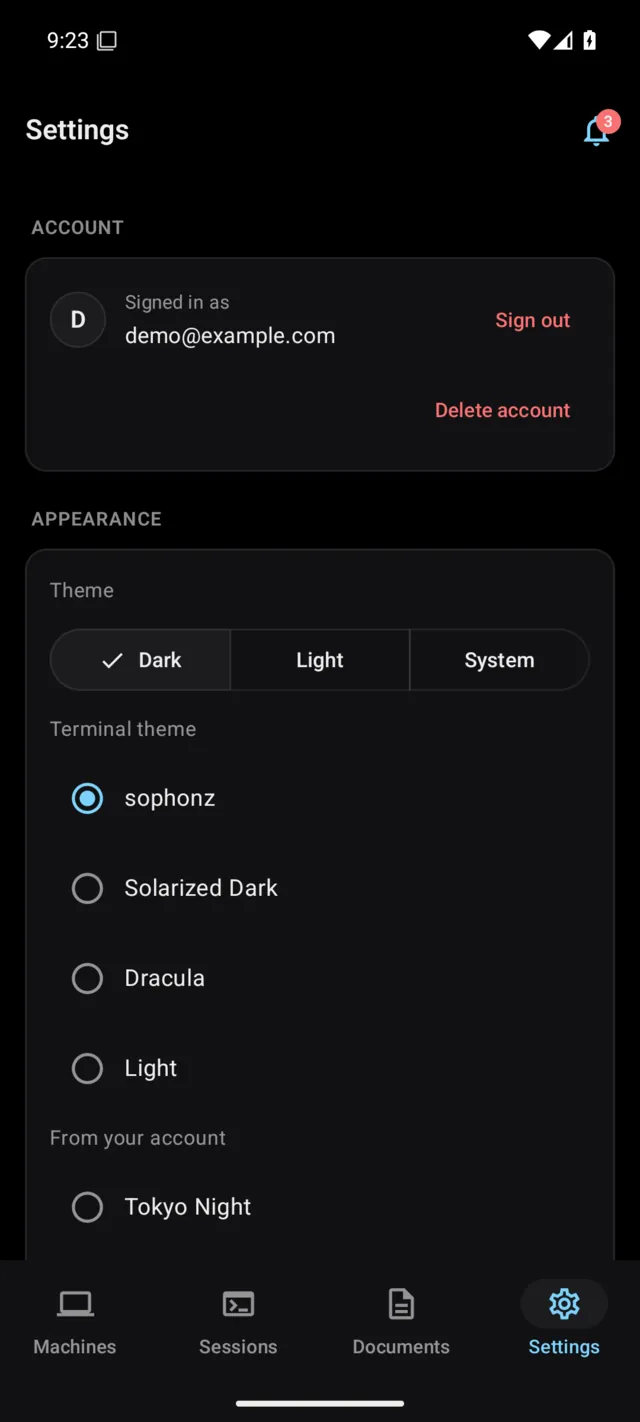
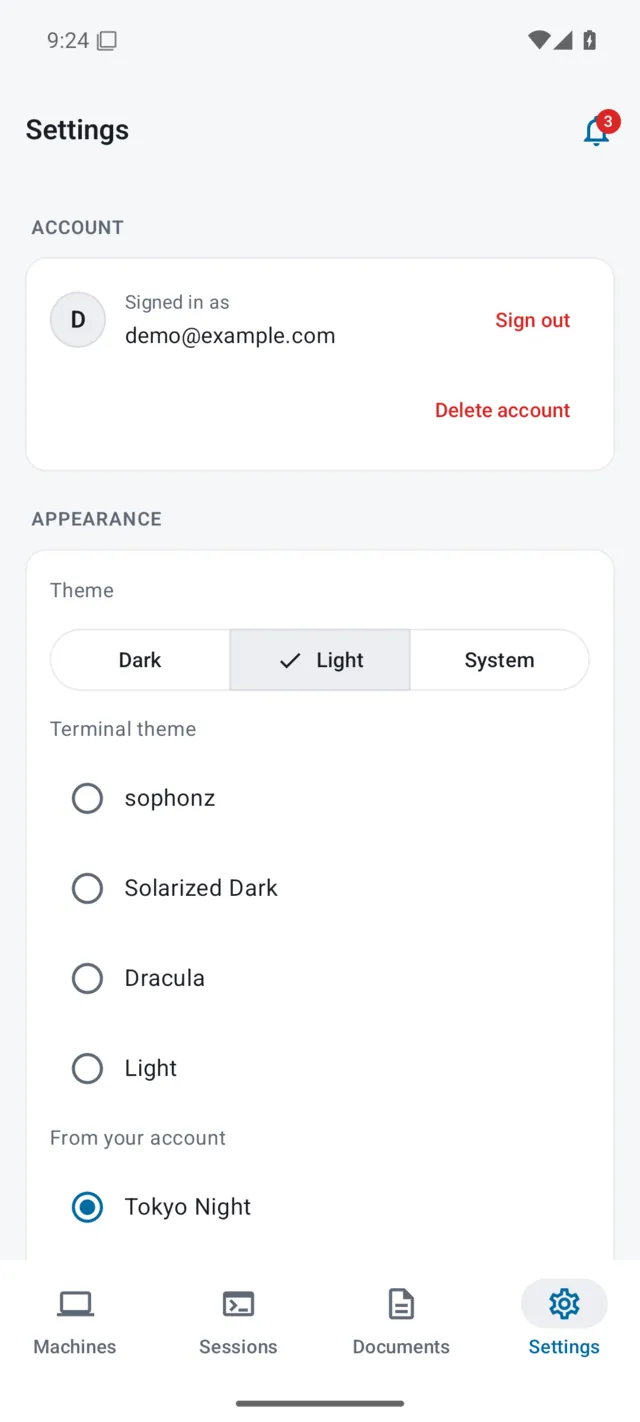
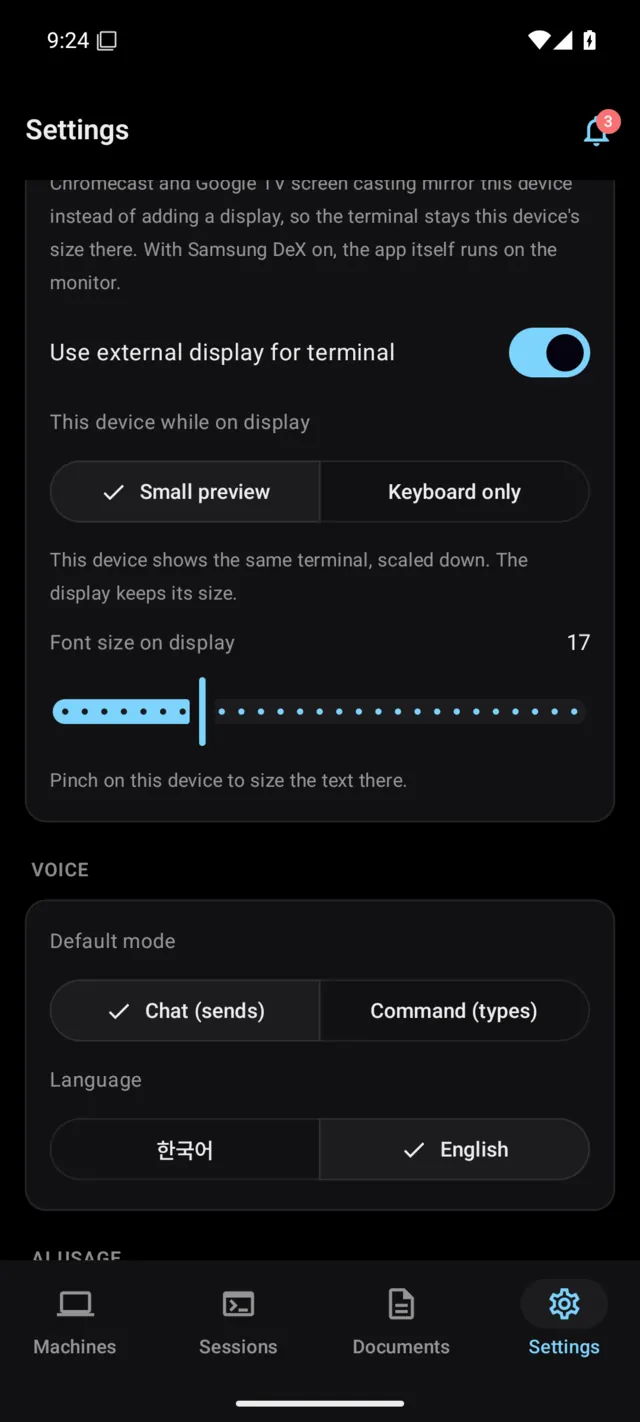
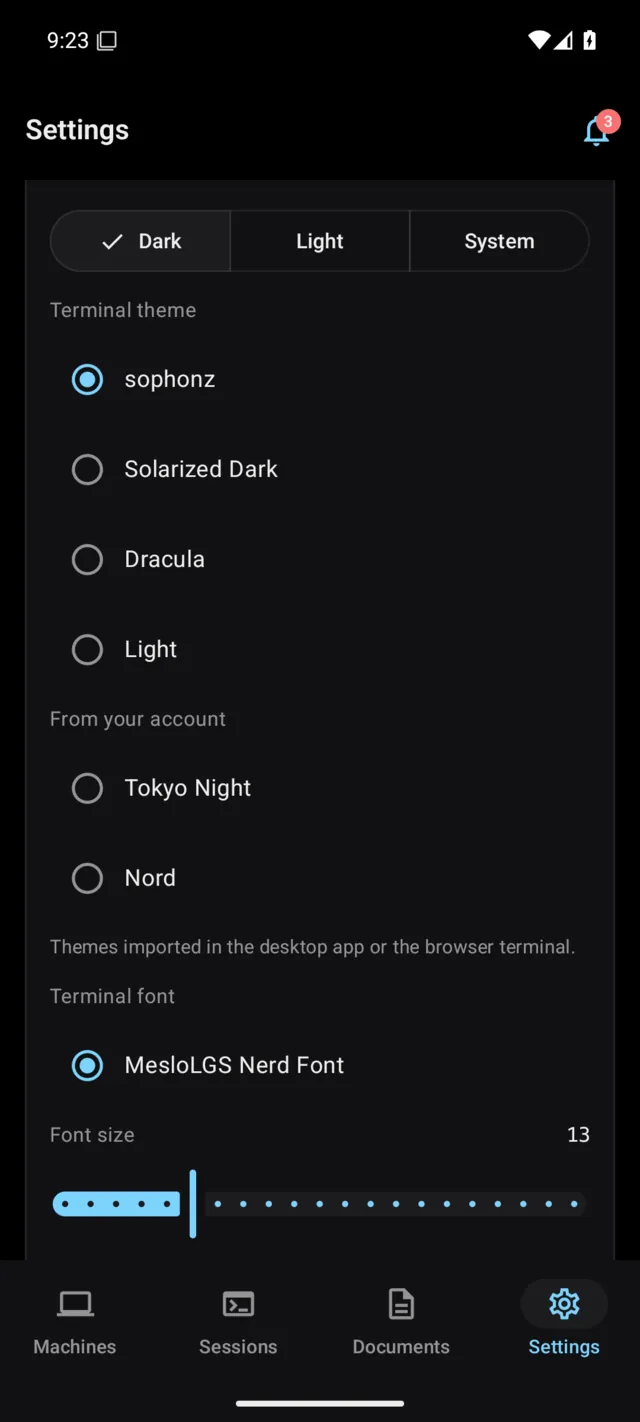
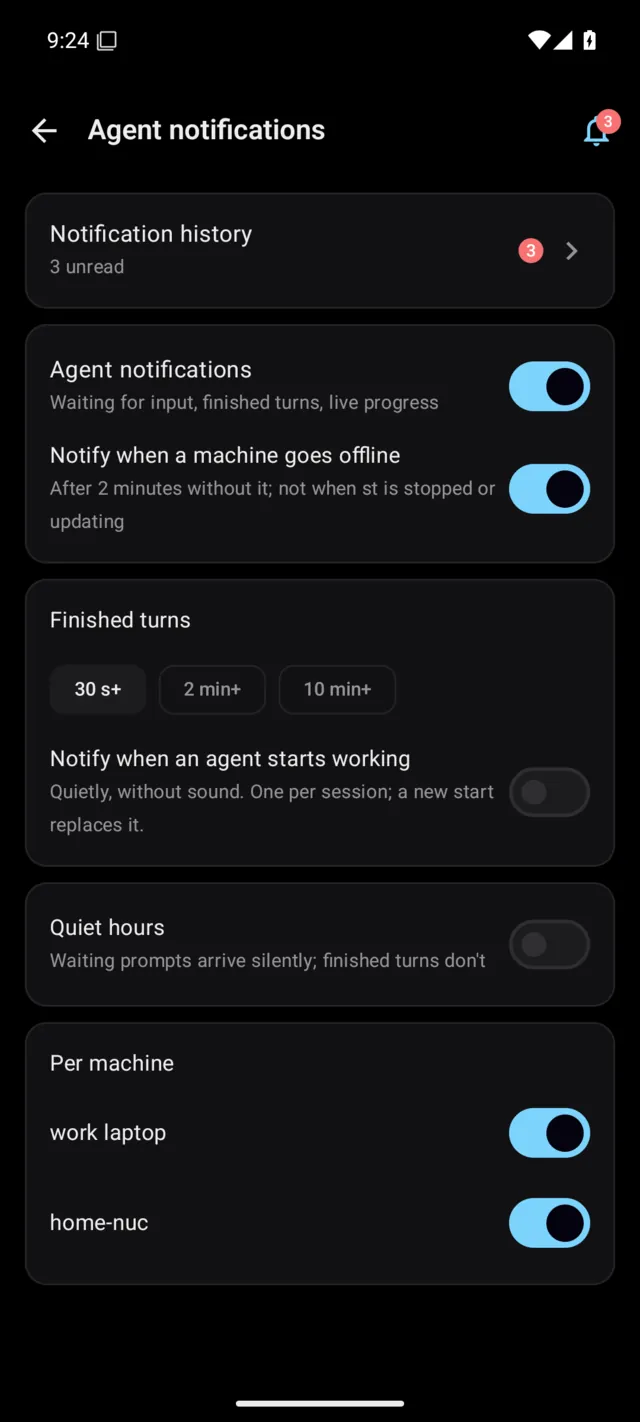
Settings is in six groups, with the same names and order as on the iPhone: Account, Notifications, Appearance, Keys and input, Usage and Guide and about. Each row opens its own page. Delete account is the last row, on its own.
| Group → row | What it holds |
|---|---|
| Account | Sign in with sophonz, or who is signed in and Sign out. Signed in, Signed-in devices lists where the account is signed in, and signs a device out, or every one but this. |
| Notifications → Agent notifications | On or off and the unread count. Opens the history; notifications, offline and the Live Update; Only decision gates; finished and started turns; quiet hours; per-machine switches — see Notifications. |
| Notifications → Machine health indicator | When a machine's row shows its health (Off, Critical only, Warning and critical), the bars, and which machines show — see Machine health. |
| Appearance → Language | English or 한국어: the same setting as Android's Settings › Apps › sophonz › Language on Android 13 and later. |
| Appearance → Theme and font | Theme: Dark, Light or System; Dark is the default. Terminal theme: sophonz, Solarized Dark, Dracula or Light, with themes imported in the desktop app or the browser terminal listed under From your account; the pick applies to this device only. Terminal font: MesloLGS Nerd Font. Font size: 8 to 28, 13 by default. Cursor: Block, Underline or Bar. |
| Appearance → Terminal | Screen → Keep screen on in the terminal: Always (the default), While charging or Off. While a terminal is open the screen does not dim or lock by itself; everywhere else it does as usual. If the device does lock, the terminal reconnects when you come back and the computer redraws the screen. Panes → Open panes zoomed: a pane picked on a split window's map fills the screen; on by default on a phone, off on a tablet. GitHub CI, once a machine has shown the CI board: whether the board shows under the terminal (see GitHub Actions). |
| Appearance → External display | Whether the open terminal goes to a connected display, what the device shows meanwhile (Small preview or Keyboard only), and the font size there — see On a bigger screen. |
| Keys and input → Key bar | Layout: the key bar's rows and keys — start from a preset, drag to reorder, hide, add, change what a key sends; see the key bar. Agent keys: follow the agent in the pane (Automatic), or always Claude Code, Codex, Gemini CLI or the generic set. Agent row: While an agent runs (the default), Always or Hidden. Hide the key bar when a hardware keyboard is connected: on by default; with a Bluetooth or USB keyboard the bar starts closed and the keyboard button in the terminal's corner opens it. Show the tmux row by default: whether the multiplexer row is open when a terminal starts. Haptics: a tap you can feel on each key. |
| Keys and input → Hardware keyboard | Keymap: switch between the built-in keymaps or import your own — see Keymaps. |
| Keys and input → Quick prompts | The quick prompts and their order. |
| Keys and input → Voice | The default mode, Chat or Command, and the language: 한국어 or English. |
| Usage → AI usage | The AI usage screen. |
| Guide and about | Getting started in the app and All guides, in the device's language. About: the version, Show guide again, open source licenses and the privacy policy. |