Desktop app
sophonz ADE for macOS, Windows and Linux — this computer's tmux sessions and the account's other machines, in one window.
Sophonz, the desktop app, is a terminal with st inside it. It opens straight onto this computer's tmux session, and the sessions on the other machines on your account open in the same window.
Unlike a desktop browser, the app runs st itself. If st is not running on this computer, the app starts it. The machine list, documents and metrics are in the sidebar. Closing the app leaves the agent and the tmux sessions running.
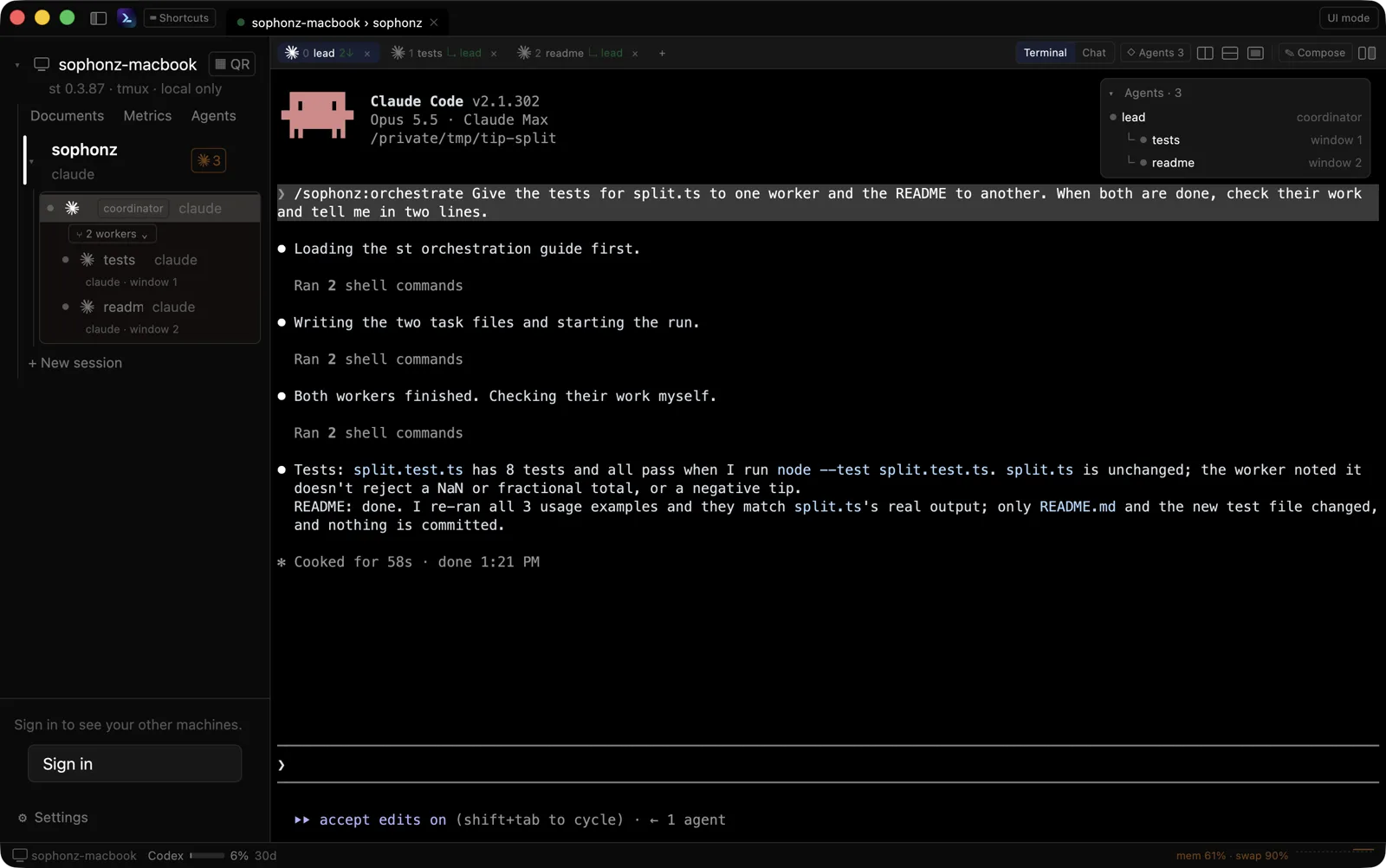
Getting it
Get the file for your computer from Download. It is a DMG on macOS, an installer on Windows and an archive on Linux, always the latest version, and the same page has the changelog for every version.
| Platform | Needs |
|---|---|
| macOS (Apple Silicon) | macOS 11 or later |
| Windows (x64) | Windows 10 1809 or later |
| Linux (x64, arm64) | a Vulkan 1.1 driver, X11 or Wayland |
Each version's files and its SHA256SUMS are in https://dl.sophonz.io/apps/desktop/<version>/. To check what you downloaded:
sha256sum -c SHA256SUMS --ignore-missingThere is no need to install st first: the app carries its own. An st you installed yourself, on your PATH, is used ahead of it.
macOS
The DMG opens on the Sophonz app beside the Applications folder: drag the app onto the folder to install it. The DMG and the app are signed with an Apple Developer ID and notarized, so it opens without a Gatekeeper warning.
Or with Homebrew (Apple Silicon only):
brew trust --tap sophonz-labs/tap
brew install --cask sophonz-labs/tap/sophonz
Homebrew asks before it loads a tap that is not its own, so brew trust comes first. The app updates itself, so brew upgrade leaves it alone.
There is no build for Intel Macs, because the st inside it has none.
Windows
Run the installer (-windows-x64-setup.exe). It installs for your user only, without administrator rights, into %LOCALAPPDATA%\Programs\Sophonz, with a Start menu entry and an entry to uninstall it.
On a PC where nothing may be installed, take the Portable build (-windows-x64.zip): unzip it anywhere and run sophonz-terminal.exe, leaving the st.exe beside it where it is. The portable build updates itself too.
The installer and the two executables in it are signed through Azure Artifact Signing, by INOBS Inc. The signature is on the Digital Signatures tab of the file's properties.
Linux
The tar.gz holds the executable, a .desktop file and an icon. Put the executable on your PATH, and the .desktop file in ~/.local/share/applications to have it in the menu.
The app does not start in a virtual machine or a remote desktop without Vulkan. On Alpine (musl) the bundled tmux does not run, so install the distribution's tmux.
Updates
The app checks for new versions and updates itself. When there is a new version, Update to vX.Y.Z appears at the right of the title bar. Click it and the app downloads it, checks the checksum and the signature (the Developer ID on macOS, INOBS Inc. as the signer on Windows), puts it in place and opens again. If the checksum or the signature does not match, nothing is replaced and it says why. When this version is too old to keep using, a red Update required appears in the same place.
The automatic check can be turned off in the settings. To check at once, use Check now in the settings, Check for updates in the account menu, or Sophonz → Check for Updates… in the macOS menu bar. The st inside the app is replaced with it. An st agent already running is left alone; the app uses the new st the next time it starts one.
Do not run st upgrade on the st inside the app: it would modify the signed app bundle. To keep an st of your own up to date, install it on your PATH.
After an update the app opens once on What's New: every release since the version you last ran, the newest on top. On macOS, Sophonz → What's New and Help → What's New open it any time.
Screen layout
- Title bar. The top row: the sidebar button, the logo, the shortcuts button, the tabs (terminals, documents, metrics, agent graphs, settings), the UI mode switch and the update notice. Drag it to move the window; double-click it to switch between maximized and the size it was.
- This computer. The sidebar starts at this computer's row, with no heading over it. Under it are its tmux sessions, each with its tmux windows indented under it. From app 0.1.33, click another session's row to go to that session (or open it); click the session in front to fold or unfold its windows, and the small ▾/▸ folds any row. Double-click a session's row to open it; click a window's row to open its session on that window. Under a session's name one line says what goes on in it, folded or not: how many agents are asking or working, how many subagents run, and what the busiest one is at. The
▦ QRon the machine's row opens this machine on a phone — the same link asst url. An agent's subagents and workers are listed as a tree under its window's row (see Adopting an agent). - Other machines. The other machines on the account you are signed in to, opened through the control plane the same way as the link. With the pointer on a machine's row, a
▦shows its QR: the machine's account link (link.sophonz.io/m/<slug>), which holds no key and opens on a phone signed in to the account. - Documents. Under each machine, that machine's documents, laid out like a vault: folders as a tree,
[[links]], embeds, callouts and properties, and panes that split, each in Reading, Live preview or Source. Edits save themselves back to the machine. The folders and links needst0.3.86 or later on that machine. From app 0.2.0, where the machine'sst(0.4.0 and later) keeps a vault, the row reads Doc instead and opens that vault, every session's documents under it, in one tab. - Metrics. Under each machine, its memory, swap and CPU over the last ten minutes.
- Account. The avatar at the bottom of the sidebar: the Google or GitHub picture you signed in with, or the first letter of your name. Click it for Settings, Check for updates and Sign out.
Each machine has a machine icon before its name, in the usual color when it is online and faint when it is offline or not yet connected. Memory, swap and AI usage are not in the sidebar but in the status bar at the foot of the window.
The session in front is marked on its left edge and named in bold, and the row in front (its window, or the session while it is folded) has a gray fill with a bright outline. From app 0.1.33 only the window in front in this app is lit, not one that another client, such as a phone or another attach, has in front. Clicking into a panel, its chat included, makes that panel the one in front. A window whose folder is in a GitHub repository shows the owner's avatar, an organization's or yours, before its name in the sidebar and on its tab (st 0.3.75 or later). When an agent on this computer stops on a question or a permission, a ? shows on its window's row, its tab and its session's row; point at it to read what the agent asks.
When the control plane (link.sophonz.io) does not answer, a yellow Offline shows in the title bar and over Other machines. This computer's row reads · offline and the other machines dim with no state. While offline the app keeps checking, and this computer's sessions keep working.
Click a machine's row to fold or unfold it. With the pointer on the row, a ✎ shows at its right end: click it to rename the machine on your account, the same name the phone apps show. Use hostname clears the name and goes back to the hostname. Renaming works only when you are signed in.
When a machine runs an older st than the newest, its row shows the version it would get, such as ↑ v0.3.87, on this computer and on the account's other machines. Click it, or right-click the row and choose Update st to …; the app asks first and lists what the new version brings. While it updates, the row shows each step (checking, downloading, verifying, switching). The link stays the same and the sessions keep running; if the new version does not start, the one before comes back. When it is done the row reads Updated to v… for a moment. A machine that cannot be updated from here says why and what to run on it instead: brew upgrade st and then st restart for a Homebrew install, or st upgrade for a machine that is not signed in or an st too old to be updated this way. It is the same update as the phone apps' (Upgrading).
The sidebar folds with ⌘B (Ctrl+Shift+B on Windows and Linux) or the button at the left of the title bar, and its right edge drags to change its width. The fold, the width and the machines you folded are remembered.
On macOS there is a menu bar too, laid out like iTerm2's: Sophonz (about, check for updates, What's New, settings, shortcuts, quit), File (Open, Save and Archive Project…, from 0.1.43), Shell (new session and window, splits, open beside, close, reopen closed tab, rename window, this machine's QR), Edit, View (sidebar, mode, text size, documents, metrics, agent graph, terminal or chat), Window (minimize, merging all windows, picking tabs and panes, pane sizes, moving between sessions and views) and Help (these docs, What's New, shortcuts). The keys shown in the menus are the shortcuts themselves. Windows and Linux have no menu bar; the same actions are on the shortcuts and the on-screen buttons.
Status bar
A thin bar along the bottom of the window shows the machine of the view in front, or this computer when there is none.
- On the left, AI usage. Each coding agent's own usage limits, for the agents used on that machine (Claude, Codex, Gemini): a chip per agent with a bar for its fullest limit and the share used of each limit window (
5h,weekand so on).streads them from each service every few minutes. This machine's are read again every minute; other machines' come with the account's machine list. Pastst's levels (normally 80% and 95%) they turn yellow, then red. Hover a chip for the agent's plan and when each limit resets. An agent that is signed out or could not be read is left out. - On the right, memory and swap. In use now, with a small line of swap over the last ten minutes. The dashed line is where
ststarts to warn; at a warning or critical level the text and the line turn yellow or red. Click it for that machine's metrics tab.
Click the left side for a popover with every online machine's usage and memory at once; a machine's name there opens its metrics tab.
Tabs
A tab in the title bar is one terminal, or several views side by side. Drag a tab onto another to move it there, or move it one place at a time with ⇧⌘← and ⇧⌘→ (Ctrl+Shift+PgUp and Ctrl+Shift+PgDn on Windows and Linux).
Closing the tab in front goes back to the tab you were on before it. ⇧⌘T (Ctrl+Alt+Shift+T on Windows and Linux) reopens a closed tab. The app keeps up to 20 tabs closed while it runs and reopens them with their views as they were; sessions that ended meanwhile are left out, and if all of them ended it says so.
The strip does not scroll. When the tabs no longer fit, those that fit show and the rest wait behind an N more ⌄ button at its end, which lists them all and carries a dot when one of them wants attention. The tab in front is always shown, in place of the last one that would fit.
Drag a tab out of the window and let go to open it in a window of its own. Let it go over another of the app's windows and it joins that one; Window → Merge All Windows gathers every window's tabs into one. On macOS dragging a tab moves the tab, not the window; drag the empty parts of the title bar to move the window.
⌘W (Ctrl+Shift+W on Windows and Linux) closes the app window. When it is the only window, it closes the tab in front instead, so the app does not quit. Either way the sessions keep running. Closing a pane is ⌥⌘W (Ctrl+Alt+W on Windows and Linux).
When a terminal in a tab behind the front one rings its bell, the tab gets a dot beside its name until you open it.
In UI mode, double-click a tmux window's tab above a view to rename that window. In the sidebar, double-click a window's row, click the ✎ that shows on hover, or right-click the row and choose Rename window…; this works for a window that is not open in a view yet as well. Shell → Rename Window… in the menu bar renames the current window, in classic mode too. It renames the window in tmux, so every screen on that session, phones included, sees the new name.
Opening again
The app opens again with the tabs you had: their order, the tab in front, and each tab's views side by side at their sizes. Views of sessions that ended meanwhile are left out and the rest share their space. Views on a machine that does not answer (off or offline) are kept and wait to reconnect.
The window opens where it was too: the same screen, place and size, and maximized if it was — after an update as well. If that screen is gone, it opens at the default size in the middle of the main screen. A window that was full screen opens where it was before it went full screen.
Side by side
One tab can hold several terminals side by side. ⌘\ opens another view of the same session to the right, ⌥⌘\ below it. Each view has a tmux view of its own, so two views of one session can show different windows. Option-click a session in the sidebar to open another session, or one on another machine, beside the current view.
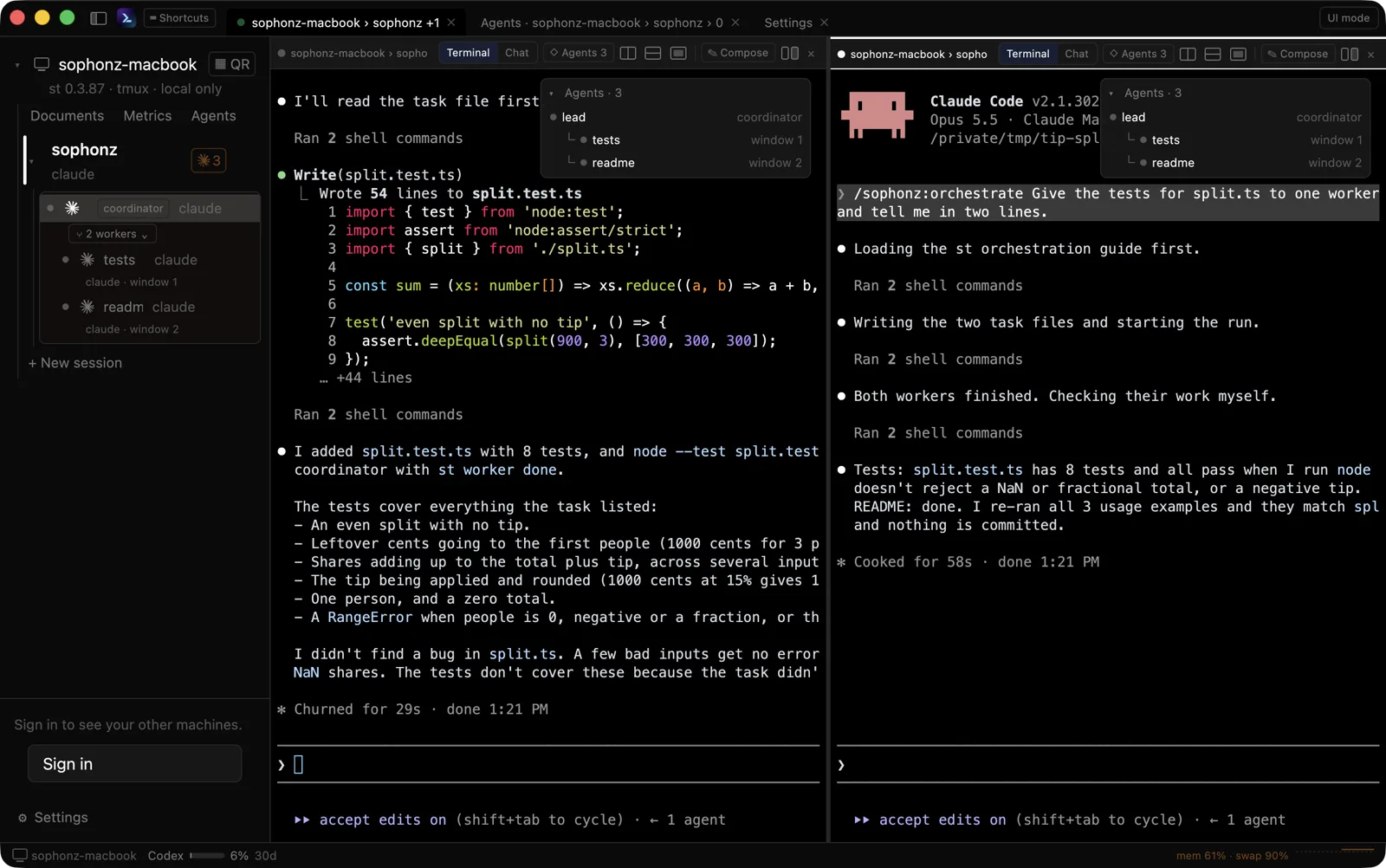
Drag the line between views to resize them; the view under the pointer takes focus. ⌃⌘= (Ctrl+Alt+= on Windows and Linux) makes every view in the tab the same size. When the keyboard moves you to another view or pane, its border lights up for a moment. Turn on Dim inactive views in the settings to fade the views without the focus. Closing a view only disconnects it, and the session keeps running.
On Windows psmux has no session groups, so two views of one session show the same window.
Links and files
⌘-click a link in the terminal (Ctrl-click on Windows and Linux) to open it in the browser straight away. While the key is held, the link under the pointer is underlined and the address it really goes to shows at the bottom left. A plain click on a link opens a small menu with Open link and Copy link.
A link the program marked (OSC 8) comes first; otherwise the app looks for an https://, http:// or file:// address written out in the text. An address the terminal wrapped onto the next row is joined into one link and stops at a pane border. An address a program wrapped itself inside a box, as Claude Code does, is joined too.
Only the web (http, https), mail (mailto) and, in this machine's terminals only, file:// open. Anything else is not opened: the address is shown with not opened.
A Markdown file's path written out in the text (docs/plan.md, ~/notes/a.md) is a link too: ⌘-click it (Ctrl-click on Linux) and it opens as a document. This works in this machine's terminals only, since the path names a file where the terminal runs, and not on Windows.
Drag files from Finder or Explorer onto this machine's terminal and their paths are typed in quotes, separated by spaces.
Compose
✎ Compose on a view's header, or ⇧⌘E (Ctrl+Shift+K on Windows and Linux), opens a box to write a message in and send it to the terminal in one go, as the phone apps do. Upload to machine… sends files up to the machine and puts their paths in the text, Insert from Documents… puts one of the machine's st documents in, and Insert text file… puts in a text file from this computer. A picture on the clipboard, such as a screenshot, pastes straight in with ⌘V (Ctrl+V on Windows and Linux): it goes up to the machine and its path goes in the text, so an agent can see what you are looking at. Send ⌘↩ (Send Ctrl+Enter on Windows and Linux) sends it, Type only types it without pressing Enter. A draft is kept per machine, session and window until it is sent.
Chat view
A window running Claude Code or Codex gets a Terminal | Chat switch above its view. Click Chat, press ⇧⌘J (Ctrl+Alt+Shift+J on Windows and Linux) or use View → Terminal / Chat to read the agent's conversation as bubbles, the way the phone apps show it.
Tool calls are folded with their output and diffs; click one to open it. A question the agent asks you to choose from comes as a card. Type in the box at the bottom and press Enter to send it to the agent through st, as if typed into its own input; Shift+Enter is a new line. While the agent works, Stop halts it. The terminal stays connected under the chat, and a question only the terminal can answer sends you back to it.
Agent graph
When an agent in a session hands work to other agents, the graph shows who handed what to whom: a Claude agent team's lead and teammates (in tmux mode), and the subagents an agent started, top down and live. Each card has a name, what it is doing, its state (working, needs input, done and so on) and how long it has been at it. An agent waiting for input has a yellow border.
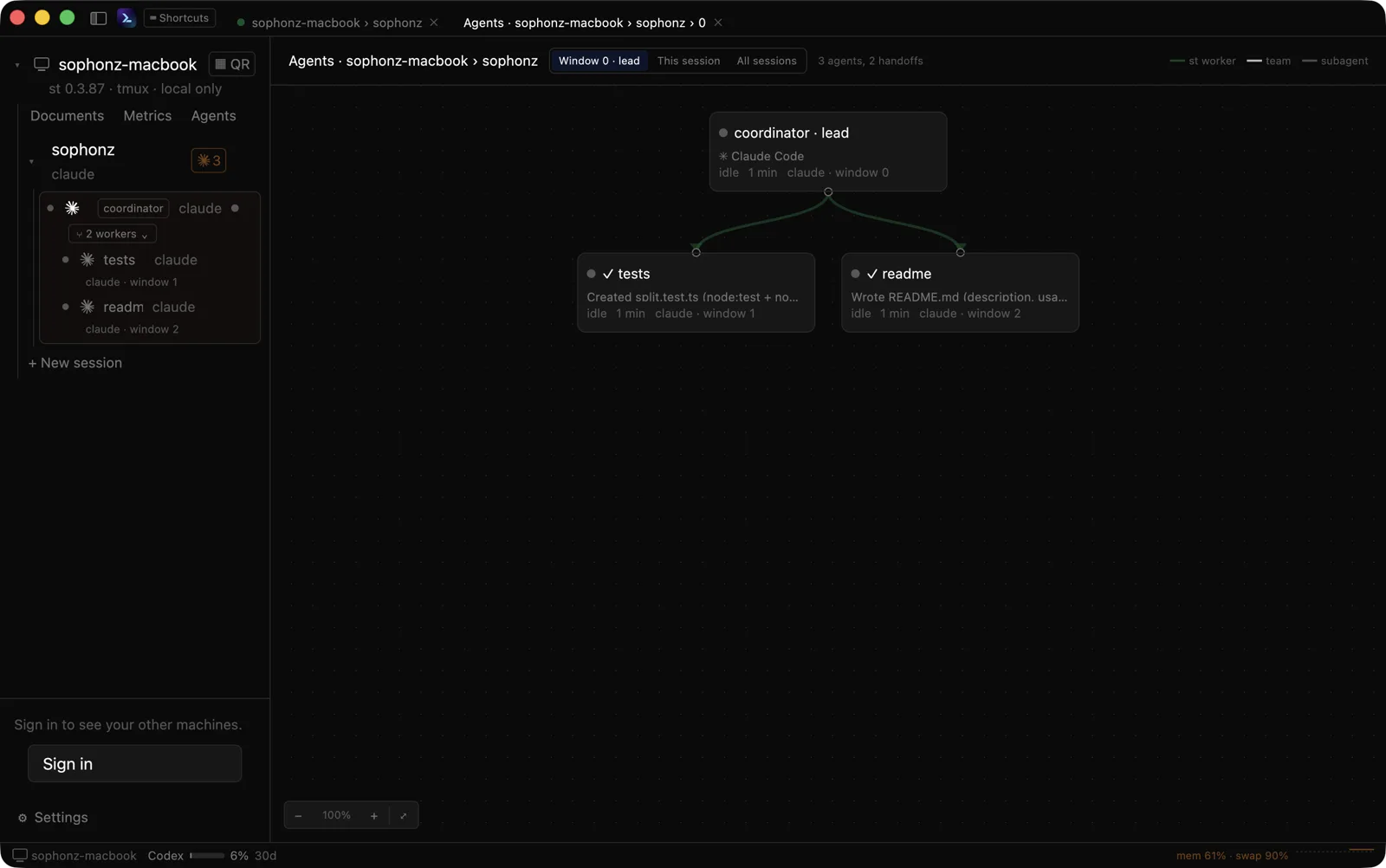
⇧⌘G (Ctrl+Alt+Shift+G on Windows and Linux) or View → Agent Graph opens the current view's graph in a tab. When this machine's st reports the graph, a ◇ Agents chip is always on the view's header, dim until agents hand work to others; then it reads ◇ Agents N, and turns yellow when an agent is waiting for input.
This session in the graph's header shows the agents of the current tmux window, All sessions every session on that machine. All sessions is also under each machine in the sidebar and in the View menu. A working agent has a thick accent border and a breathing dot, and the header says how many are working.
The graph opens with every card in view. Scroll or drag the empty part to pan; zoom with Ctrl and the scroll wheel, ⌃=, ⌃-, ⌃0 (Ctrl+=, Ctrl+-, Ctrl+0 on Windows and Linux) or the graph's − % + ⤢ buttons. Cards stay where you drag them, for each session; Reset layout puts them back.
Click a card with a pane to go to that window and pane of the session; hold ⌥ while clicking to open it beside the current view. A card without a pane, such as a subagent, shows its description, state, start time and its own conversation at the right, live and read-only, with a way to its parent's terminal.
Orchestration workers are in the graph too: a thick green line runs from the coordinator to each worker, and a finished worker's card has its summary. Drag an agent's card onto another agent's card and it becomes that agent's worker, its conversation kept. The card under the pointer lights up with Make <worker> a worker of <coordinator> above it; a card it cannot go on turns red and says why (the same cases as in Adopting an agent). Hover a worker's card and click Release to let it go. The other end of a line that sits in another session comes in as a card with that session's name, and does not count toward the window's own agents. If that machine's st does not report the graph, the app asks you to run st upgrade there.
Work shared with other machines is in the same graph. A coordinator's workers on other machines hang under it on a green line, with their own workers and subagents below them, and a coordinator on another machine sits above its workers here. Such cards carry the machine's icon and name before their own (CI Mac · 2-1-273), and their state and question marks are that machine's. Click one to open that machine's window. A worker card from another machine has Release too, and dragging it onto an agent card of this machine adopts it. Dropping onto another machine's card does not work in the graph; do that in the sidebar. Agents on a machine that is off are not in the graph.
History in the graph's header opens a panel beside it with the run's record, newest first: each handoff (who to whom, when, its title), each worker's result, and each change of the tree (0.1.39 or later). Pick a card to see only its events. A line opens the handoff document, or the copy st kept when the document is gone or has changed. A run can also be kept as one file and opened again: see A run as one file (File → Open / Save / Archive Project…, 0.1.43 or later).
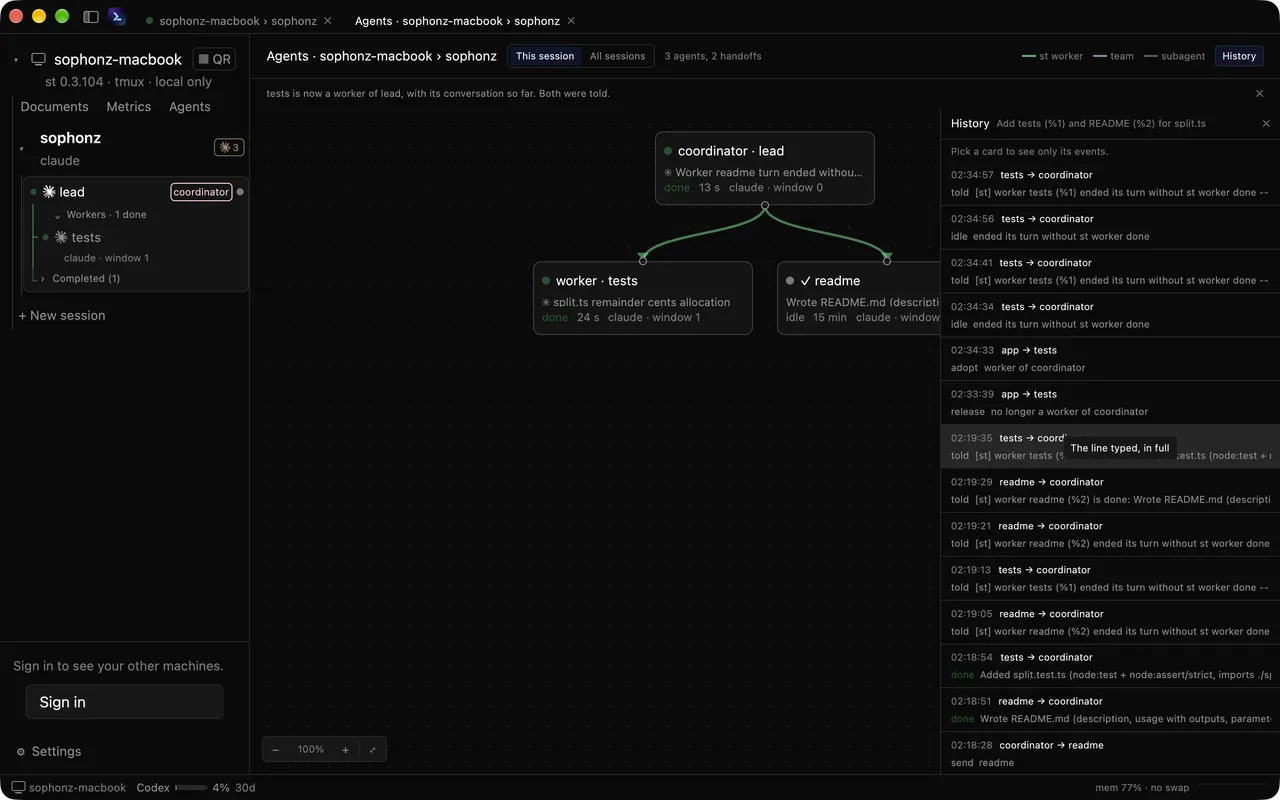
A worker started with a worktree of its own (st 0.3.84 or later) gets Changes in the graph. It opens a tab with the worker's diff, the files it has not committed and its summary, and Merge brings its branch into the coordinator's checkout. When one task went to several workers at once, the tab shows them side by side, and Use this one merges that one and closes the others. Orchestration has the rest.
The Agents card on the terminal
When the agent in a window on one of this computer's views is handing work out, or is someone's worker, a small Agents · N card sits in a corner of the view, at the top right to begin with. The coordinator comes first, then its workers, subagents and teammates as an indented tree, each row with a state dot and its kind. The agent the view is showing is in the accent color.
- Click a row to go to that agent: its window and pane when it has one, or its chat when the view is in chat.
- Click a subagent or teammate and the view turns into its conversation, read-only, with a
← parentbutton and aSUBAGENTmark above it.← parenttakes you back to the parent agent. - Workers and coordinators on other machines are in the same tree, with the machine's icon and
<machine> · <name>. Click one to open that machine's window. - Click the card's header to fold it.
- When the card is in the way, click the
✛in its header. Each click moves it to the next corner: top right, bottom right, bottom left, top left. - To keep it off altogether, turn off Agent peek view in the settings. The agent graph tab (
⇧⌘G) still has the same graph.
The web terminal in a browser (desktop layout) has the same card, with the same ✛ and Agent peek view. From st 0.3.92 its card and graph also hold the agents of the account's other machines, and a click opens their windows; an offline machine's are dimmed.
Adopting an agent
In the sidebar, drag the window row where an agent runs onto another agent's window row, and the agent you dragged becomes that agent's worker. Nothing is started again, so the conversation carries on. Giving an adopted worker work, and doing the same with commands, is in Orchestration.
- A row it can go on lights up across its whole width, with
Drop hereat its end. A note under the pointer says what it becomes (Make api-tests a worker of planner). - A row it cannot go on gets a red line and
Can't drop, and the note gives the reason in red: the agent itself (… can't be its own worker), one of its own workers or anything below them (… works under …: it would go round), the coordinator it already works for (… already works for …), or a place where more than four agents would be above a worker (Too deep: at most 4 agents may be above a worker). Let go there and nothing changes; the reason shows at the top of the sidebar. - Rows without an agent, and the space between rows, show nothing.
- After a drop, the result shows in one line at the top of the sidebar for a few seconds.
The coordinator's card
Once adopted, a coordinator and its workers share one card in the sidebar, drawn as a tree (app 0.1.33 or later): a thin guide line runs down from the coordinator to each of its workers. Cards are a neutral gray, not the agent's color; the agent colors stay on the dots and icons. Rows in a card leave out the command name such as claude, so the name gets the room.
- The coordinator's row has a
coordinatorbadge after its name. - Workers' windows on the same machine are drawn again inside the card, under the coordinator's row, each with a state dot and a second line
<agent> · <session> · window N · ⑂ <branch>. The session is there only when it differs from the coordinator's, the branch only when the worker has a worktree of its own. When the coordinator's session is folded, its workers stay where they are, marked↳ <coordinator>. - The
⑂ N workerspill under the coordinator's row folds and unfolds the workers. Folded, it still shows the count, with a?when a worker is asking and a dot when one is working. Each coordinator's fold is remembered. - A worker that leads workers of its own becomes a box one shade darker inside the card, with its team one step further in. The team lead's row has
team of Nafter its name, and so do its card in the graph and its row in the terminal's Agents card. The team labels needst0.3.88 or later. - A worker whose coordinator is gone (its pane closed, or tmux restarted) stays in the list with
⚠, says which coordinator is gone, and has Release. Workers that follow their agents across a tmux restart needst0.3.88 or later. - The Claude Code subagents an agent starts sit under a
◦ N subagentspill below its row, open while any of them runs and folded once all are done. A subagent's row has asubagentbadge, its kind and how long it has run; click it to open the subagent's conversation in the view. Subagents cannot be dragged to adopt or let go. - UI mode's window tabs have no cards, so a coordinator's tab shows its worker count (
2↓) and a worker's tab a↳.
Letting a worker go
Right-click the worker's window row and pick Release from <coordinator>. The row goes back to its place in the sidebar, and the session is the conversation it was before. In the graph, click Release on the worker's card.
Workers on other machines
Agents on the other machines of your account are adopted the same way: drag an agent's window row under another machine onto an agent's row on this one, or the other way round. Both machines need st 0.3.85 or later, and the machine with the agent that is to become a worker needs st orch accept-remote on. The commands are in Workers on other machines.
- In the coordinator's card. A worker on another machine comes after the workers on the same machine, with a small screen-shaped machine mark after its name and a second line
<agent> · window N · <machine>. Click it to open that window on that machine. It counts in the pill (⑂ 3 workers (1 elsewhere)), and hovering the pill says which machine. - Under the worker's own machine. Its window row stays in place there, with the same mark and a green
↳ <coordinator> · <machine>. - Letting it go.
Release from <coordinator>on the right-click menu, or Release in the graph, works as it does on one machine; that machine'sstdoes it. - A worker whose coordinator is gone. When the coordinator's pane of a worker on another machine goes away (the agent ended, or tmux renumbered its panes), the worker shows under the coordinator's machine with a warning
⚠andits coordinator %0 is goneat the end of its second line. Click itsReleaseto let it go, or drag its window row under its own machine onto an agent's row to adopt it again.
Not yet:
- Adopting by dropping onto another machine's card in the graph. Use the sidebar.
- Changes and the conversation of a worker on another machine.
- Machines that are off. Their agents are not in the cards or the graph.
The web terminal in a browser (st 0.3.92 or later) reads the account's other machines' agents through its own st every 5 seconds and puts them in its Agents card and graph; click one to open that machine's window. An offline machine's agents are dimmed. Its sidebar lists only its own machine's sessions: a worker whose coordinator is on another machine has a ↳ <coordinator> · <machine> mark on its row.
Signing in
Signing in is the same as st login: the app shows a code, and you approve it in a browser. Signing in from the app puts this computer on the account too.
The account lives in the same file st uses (~/.sophonz/auth.json), so signing out in the app signs this computer's st out as well, and the app asks once more before it does. Signed out, Other machines is empty and this computer's sessions work as before.
UI mode and classic tmux
The button at the top right (⌘U, or Ctrl+Shift+U on Windows and Linux) switches between the two.
- UI mode. tmux windows become tabs, and pane actions become buttons and shortcuts. The tmux status line is hidden in this app's view only. This computer's terminals take the mouse too: the pane under the pointer is the active one, and dragging a pane border resizes it. Hold Shift while dragging to select text.
- Classic tmux. tmux as it is, with its prefix key and status line.
The mouse and the direction shortcuts work on this computer's sessions only. Panes on another machine's sessions cannot be resized.
When one pane of the window is zoomed, Zoomed · show all panes shows above the view. While it is zoomed there is a single pane and no border to drag; click it to unzoom and show every pane.
Shortcuts
They follow iTerm2's tmux integration: tmux windows are tabs, sessions are windows. The full list is behind the Shortcuts button beside the logo (⌘/).
| Action | macOS | Windows, Linux |
|---|---|---|
| Split right / down | ⌘D / ⇧⌘D | Ctrl+Shift+D / Ctrl+Shift+E |
| Next / previous pane | ⌘] / ⌘[ | Ctrl+Shift+] / Ctrl+Shift+[ |
| Move to a pane / move a border | ⌥⌘+arrows / ⌃⌘+arrows | Ctrl+Alt+arrows / Ctrl+Shift+Alt+arrows |
| Zoom, close a pane | ⇧⌘↩, ⌥⌘W | Ctrl+Shift+Z, Ctrl+Alt+W |
| New window / go to a window | ⌘T / ⌘1..9, ⇧⌘[ ] | Ctrl+Shift+T / Alt+1..9, Ctrl+PgUp/PgDn |
| Open a view right / below | ⌘\ / ⌥⌘\ | Ctrl+Alt+\ / Ctrl+Alt+- |
| Next / previous view / equal sizes | ⌥⌘] / ⌥⌘[ / ⌃⌘= | Ctrl+Alt+] / Ctrl+Alt+[ / Ctrl+Alt+= |
| Switch session / new session | ⌘` / ⌘N | Ctrl+Tab / Ctrl+Shift+N |
| Close a view (the tab, if it is the last) | ⇧⌘W | Ctrl+Shift+X |
| Close the app window (the only one: its tab in front) | ⌘W | Ctrl+Shift+W |
| Reopen a closed tab | ⇧⌘T | Ctrl+Alt+Shift+T |
| Move the tab | ⇧⌘← / ⇧⌘→ | Ctrl+Shift+PgUp / Ctrl+Shift+PgDn |
| Chat / terminal | ⇧⌘J | Ctrl+Alt+Shift+J |
| Compose | ⇧⌘E | Ctrl+Shift+K |
| Agent graph | ⇧⌘G | Ctrl+Alt+Shift+G |
| Open a project file | ⌘O | Ctrl+Shift+O |
| Save the run in front as a project file | ⌘S | Ctrl+Shift+S |
| Graph zoom in / out / all in view | ⌃= / ⌃- / ⌃0 | Ctrl+= / Ctrl+- / Ctrl+0 |
| Text bigger / smaller / normal | ⌘= / ⌘- / ⌘0 | Ctrl+Shift+= / Ctrl+Shift+- / Ctrl+Shift+0 |
| Full screen | ⌃⌘F | F11 |
| Sidebar | ⌘B | Ctrl+Shift+B |
| Switch mode / settings / shortcuts | ⌘U / ⌘, / ⌘/ | Ctrl+Shift+U / Ctrl+, / Ctrl+Shift+/ |
On macOS every Ctrl combination goes to tmux. With the Korean input source on, Ctrl and Option combinations are still sent as the Latin key in the same place on the 2-set layout: Ctrl+ㅠ becomes Ctrl+B, so the tmux prefix key still works.
Settings
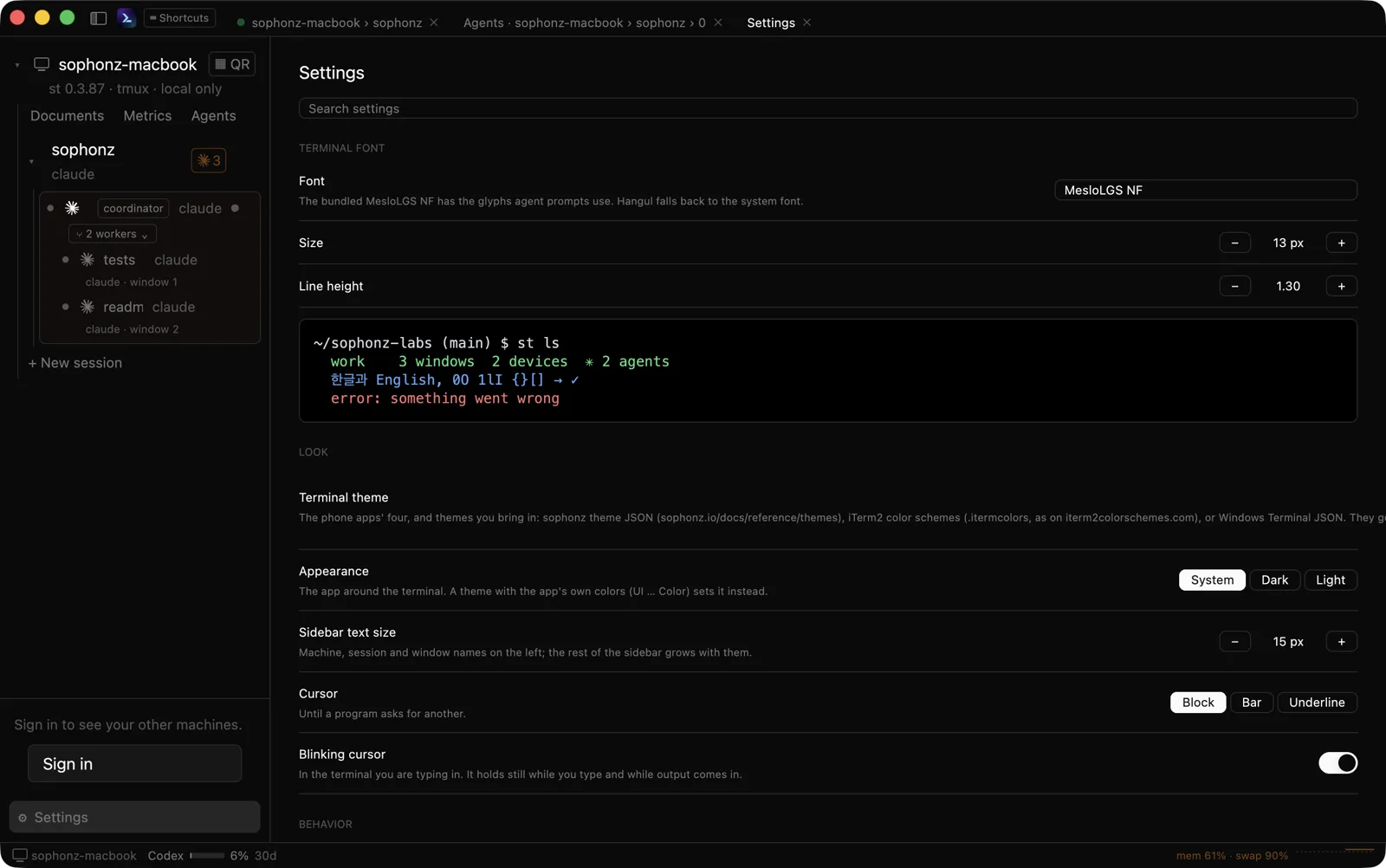
⌘, (Ctrl+, on Windows and Linux) opens them. Type in the search field at the top to keep only the settings whose name or description has that word.
- Terminal font. Font, size, line height.
- Look. Terminal theme (the phone apps' four, plus any
.itermcolorsfile from iterm2colorschemes.com, or JSON with the same keys, brought in with+ Import…; imported themes stay on the account, so the web terminal shows them too. The file format, its app colors and themes to download are in Themes), app appearance, Sidebar text size (12–20 px, 15 by default), cursor, Blinking cursor (on by default). Only the focused terminal's cursor blinks, and it holds still while you type or output comes in. - Behavior. Scrollback, copy on select, Dim inactive views, Agent peek view (see The Agents card on the terminal), Keep awake while an agent works, start mode (UI mode).
- Option as Meta. macOS only.
- Updates. Automatic updates and Check now.
They are kept in ~/.sophonz/desktop/settings.json, and the log is ~/.sophonz/desktop/desktop.log.
Keep awake while an agent works is on by default. While a coding agent on this computer is working, the computer does not go to sleep: a laptop that sleeps mid-task stops the agent with it. The app keeps checking while it is in the background too, and lets the computer sleep again once no agent is working. The display may still turn off.
Worth knowing
- Windows runs on psmux. The limits in Install apply as they are: there are no session groups, so the desktop and a phone see the same window.
- Korean input is reliable on macOS. The input methods on Windows and Linux are still being checked on real machines.
- One window on several screens is sized by whichever moved last — the
window-sizesetting in Multiplexers. For this computer's sessions the app remembers the pane proportions it had on the desktop, and puts them back when you return after a phone made the window smaller. - If Korean or line characters show as
_, this computer'sstwas started without a UTF-8 locale, and the sidebar says so. Runst restartonce in a terminal app. When the app startsstitself, it gives it a UTF-8 locale.