In a desktop browser
Open the link st printed in a browser on any other computer, and it is the same session.
st prints a link and a QR code. Paste the link into the address bar of a browser on any computer and the session st was started in opens there. Nothing to install. It is the same shell, so what is typed on one side shows on the other. To open it in an app instead of a browser, there is the desktop app.
Opening the link
| Link | Requirement |
|---|---|
The link st printed (with its token) | Nothing. Opened once, the token becomes a cookie and leaves the address |
The machine's stable link link.sophonz.io/m/… | Signing in to sophonz.io as the machine's owner. Not signed in, it takes you to sign in first |
A cookie from the token lasts 30 days; one from a machine link lasts 12 hours. Accounts and links and Locking it have the details.
In the browser
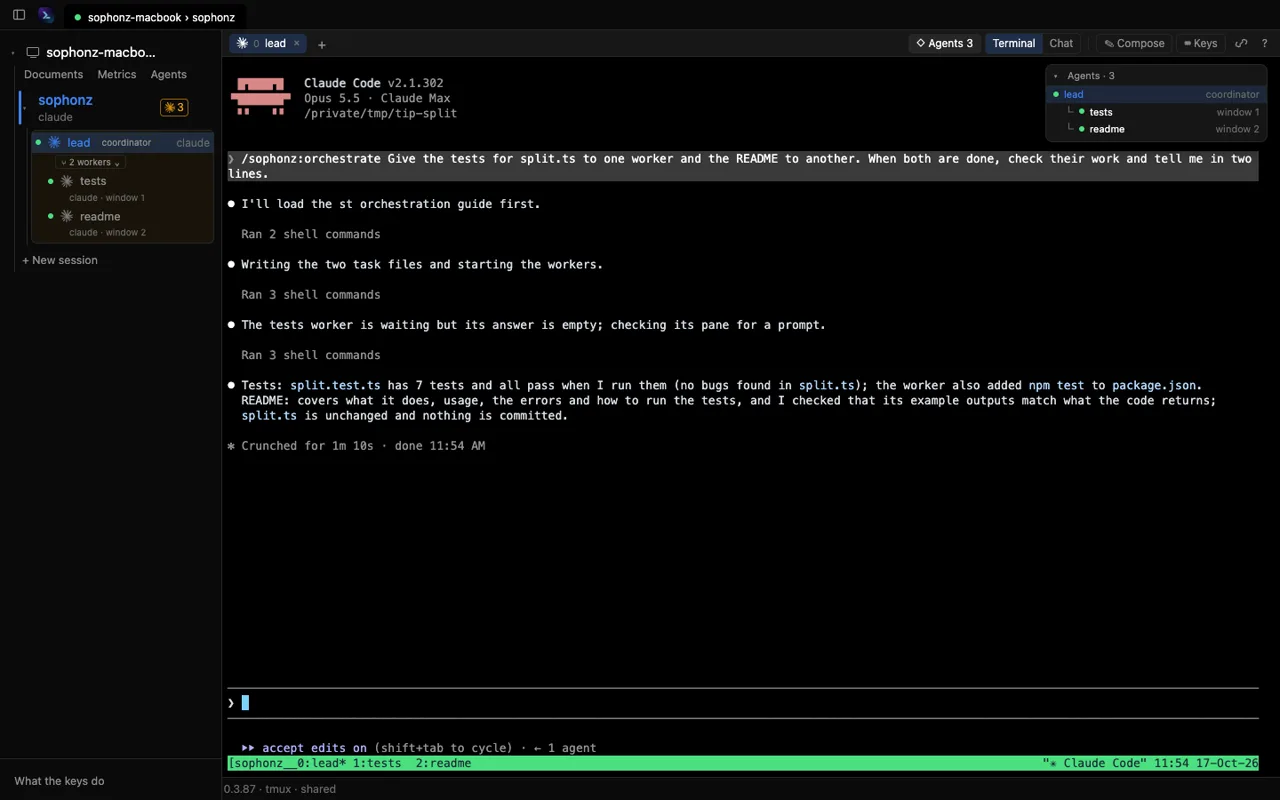
The page is laid out like the desktop app (st 0.3.75 or later): a title bar, the sidebar on the left, the session's windows above the terminal, and a status bar along the bottom. The browser tab is titled with the window, the session and the machine (st 0.3.85 or later), so tabs open on several machines can be told apart. No scrollbars are drawn, as in the app (st 0.3.76 or later); the wheel, trackpad, touch and keys still scroll.
- Your keyboard, as it is. It is a real keyboard, so Ctrl, Alt, Esc and the arrows all reach the terminal.
- The sidebar. It starts at the machine's row: there is no heading over it (st 0.3.76 or later). Hover the row for its link chip, which copies the link; click the row to fold everything under it. Under it are Documents (Doc from st 0.4.0, once
st doc migratehas made the documents a vault), Metrics, Uploads (st 0.3.94 or later) and, when st has the agent graph, Agents; every session with its windows under it, each with the program's icon and, in a GitHub or GitLab project, the owner's or group's picture (st 0.3.85 or later); and + New session. Below this machine's sessions, OTHER MACHINES lists the account's other machines with how many sessions each has (st 0.3.91 or later); click one to open it at itslink.sophonz.io/m/…link. An offline one stays in the list but is not a link. Under a session's name is a line of what goes on in it: how many agents are asking and working, their subagents, and what the busiest one is on (st 0.3.87 or later). The icons beside a session are the agents running in it, one per kind with a count, and ✕ on hover ends it (it asks first). A?marks a window whose agent waits for your answer (st 0.3.81 or later). Click a session to fold or unfold its windows and double-click it to open it (st 0.3.87 or later; ⌘- or Ctrl-click opens it in a new tab). From st 0.3.88 a click on another session's row goes to that session, a click on the session in front folds it, and the small ▾/▸ folds any row. A coordinator's card is drawn as a tree with guide lines to its workers, cards are a neutral gray (a team's lead one step stronger, withteam of Nafter its name), each kind of agent has its color on its badge, mark and the line into it (st 0.3.94 or later: coordinator rose, worker green, team indigo, subagent muted) withcoordinator,teammateandsubagentbadges, only the window in front on this page is lit, and a worker whose coordinator is gone shows ⚠ and Release. Click a window to go to it, in this session or another. A window of this session can be renamed in place: double-click its row, click the ✎ that shows on hover, or right-click it for Rename window… (↩ keeps the name, Esc keeps the old one). Drag the sidebar's right edge to make it wider (180–480px; double-click for the default), and ⌘B (Ctrl+Shift+B off a Mac) or the button at the top left shows or hides it. A window narrower than 1100px (900px before st 0.3.107) starts with it closed. - The status bar. Along the bottom of the window (st 0.3.87 or later): the machine's AI usage and its memory and swap with a small chart, which opens Metrics when clicked, and
st <version> · <multiplexer> · shared. When the machine runs short of terminals (ptys), aPTY used/maxchip comes before the memory (st 0.3.92 or later, not on Windows); click it to review ghost shells, terminals nobody can use any more. Metrics has the same count on its Terminals line, with Review ghost shells: it lists them and ends them after one confirmation. On the command line that isst status,st ptysandst ptys clean. Folding the machine's row does not hide the status bar. - Agents and workers. A coordinator and its workers share one card in the sidebar, and the ⑂ pill folds the workers. Drag an agent's window row onto another agent's to adopt it; let a worker go from its row's menu. A worker whose coordinator is on another machine carries that machine's mark. When the agent in the window on screen is handing work out, an Agents card sits at the terminal's top right, and ◇ Agents in the panel header opens the agent graph where the terminal is. From st 0.3.92 the card and the graph also hold the agents of the account's other machines, read through this machine's
stevery 5 seconds: click one to open its window there, in this tab. An offline machine's agents are dimmed. A worker window's Δ shows what that worker changed, and Merge brings it in. - Window tabs. The session's windows are tabs above the terminal, each with the icon of what runs in it: click one to go to it, double-click to rename it, × to close it (it asks first), and
+makes a new one, in the folder of the pane you are looking at (tmux, st 0.3.101 or later). A switch made inside tmux moves the tabs too. A tab shows the same?and owner picture as the window's row. The row does not scroll: when the tabs do not fit, the rest wait behind an N more button at its end, and the tab in front is always shown (st 0.3.92 or later). - Terminal | Chat. When st reads the agents' transcripts (st 0.3.61 or later), Chat puts the agent in the window's pane in the terminal's place: what you asked, its answers, each tool it used (click for its input, output and change), and its question with its options to pick. Terminal brings the terminal back. The box at the bottom sends to the agent: with st 0.3.63 or later st types it into the agent's own input, your message shows as sending… then sent, something already typed at the computer is replaced only if you say so, stop stops the turn, and
+attaches files. With an older st the box types into the pane. - Compose. ✎ Compose,
⇧⌘E(Ctrl+Shift+Koff a Mac) as in the desktop app (st 0.3.98), or ⌘↩ (Ctrl+Shift+Enter) opens a box to write a long prompt in. Enter is a new line there; Send ⌘↩ (Send Ctrl↩ off a Mac, sent with Ctrl+Enter) sends the whole thing to the pane as one message, Type only types it without pressing Enter, and Cancel closes it. From st 0.3.94, Upload to machine… (or dropping a file on it, or pasting a picture) uploads files to the machine and puts their paths in the text, Insert from Documents… puts one of the machine's documents in at the cursor, and Insert text file… does the same with a text file from this computer. Esc closes it and keeps the draft, one per session and window. - Keys. ⌨ Keys puts the apps' key bar under the terminal: ctrl and alt that stick, esc, tab, the arrows, the agent's keys, tmux's, and the rest. Press it again to put it away.
- Agents. When an agent in the window in front hands work to others or works for one, an Agents card at the terminal's top right shows who works for whom, and ◇ Agents in the panel header (or Agents in the sidebar, for every session) opens the Agent Graph in the terminal's place (st 0.3.85 or later). Its History tab lists every handoff and change of the tree, newest first, and a line opens the handoff document (st 0.3.98 or later). See Orchestration and Handoffs are kept.
- Sessions.
/sessionslists them, and makes new ones. - Documents. What
st dochas handed over. See Documents. - Paths in the terminal. ⌘-click (Ctrl-click off a Mac) a file path the terminal shows (st 0.3.93 or later). A Markdown file opens as a document, another text file at the
:linewritten after it, a picture as itself. Nothing is kept until Keep as document, which keeps a copy among the machine's documents. - Uploads. Uploads under the machine shows
~/.sophonz/uploads, what a phone or Compose sent here, as folders (st 0.3.94 or later). Download a file, preview it, copy its path for an agent, or remove it. At the top you choose how long uploads are kept: until you remove them (the default), or 7, 30, 90 days or a year;st set uploads-keep <days>|foreverdoes the same. Beside it are the space the uploads take and the disk's free space, and an upload that would leave less than 2 GiB free is refused. - CI board. With the machine's
ghsigned in, a band under the terminal shows the GitHub Actions runs of the pane's checkout (st 0.3.92 or later). Folded it is one 26px row with what runs and what failed; open, it is up to 220px. Click a job on your own runner to open a window with its log. GitHub CI in the settings turns the band off. On the command line,st cilists the runs andst ci logshows a job's log (--job <id>,--failed,--follow). - Who you are. The foot of the sidebar has What's new and What the keys do. What's new lists st's releases since the one this page last showed, and opens by itself once after an upgrade (st 0.3.92 or later). When the machine is signed in to an account, its avatar, name and address are above it and ⚙ Settings below. Click the account for the menu above it: the address, my machines, settings and sign out.
- my machines lists the account's machines in a dialog over the page (st 0.3.85 or later): this one first and marked, an offline one dimmed with its state. Pick one and it opens in the same tab, at its
link.sophonz.io/m/…link. When st cannot get the list (signed out, the control plane down) the dialog links to the dashboard instead. - Settings are the account's terminal settings, the same ones the desktop app uses (st 0.3.79 or later): font, size, line height, terminal theme, cursor and whether it blinks, scrollback, copy on select and, on a Mac, Option as Meta. A change applies at once and goes to the account, so the app and every browser on your machines get it. A phone or tablet keeps its own type size.
A tablet or phone gets the same screen, plus the key bar (st 0.3.77 or later; see Mobile browser).
Signing out
sign out -- in the sidebar's avatar menu, top right on the sessions page, or at the foot of the sessions sheet in a terminal -- clears this browser's cookie. Coming back then takes the token link or the machine link again. Signing out on sophonz.io does not clear it: each machine holds its own.
On a phone, see Mobile browser or the apps.